

All modern web browsers support notifications, also known as push notifications. These allow websites to send, mostly text, messages using the device’s notifications system. The main idea behind notifications is to allow websites to send users information, even if the user is not on the website.
However, for any website that uses notifications ethically, there are dozens that abuse the system to send advertisement or other unwanted content to users.
Tip: you can also block notifications on the operating system level. I have published a guide on disabling all or specific notifications in Windows 11.
Browser makers like Google or Mozilla have launched several attempts in the past to address abuse. These focus on two different key aspects:
- Reduce the number of notification requests by websites.
- Limit the ability of sites that abuse the feature to have their notifications shown to users who accepted to receive them.
Soon, AI will also be used to sort and organize notifications, at least on Android.
While those have helped, some Internet users may want to block notifications once and for all to avoid any notification prompts in the future.
The following section walks you through the process of limiting or disabling notifications in popular browsers. As a rule of thumb, most web browsers are based on Chromium. If a browser is not listed below, the method used for Google Chrome might work for that browser as well.
Note: You can add exceptions for specific sites. Say, you have one or two sites that you want to receive notifications from. Add them to the allow list of the browser while blocking notifications globally for all other sites.
First, the desktop browsers
Disable notifications in Google Chrome for the desktop
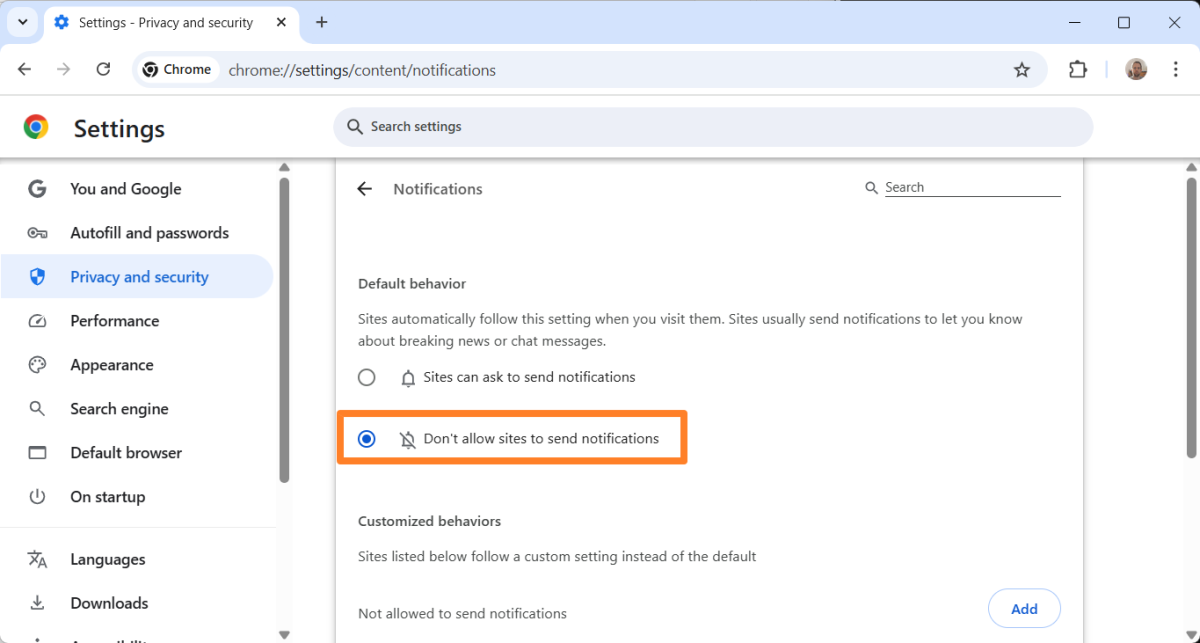
- Load chrome://settings/content/notifications in the browser’s address bar. You can also get there manually by clicking on Menu > Settings > Privacy and security > Site Settings > Notifications.
- Set the default behavior to “Don’t allow sites to send notifications”.
- If you see websites listed under customized behaviors, you may remove them by clicking on the three dots next to the site and selecting the remove context menu option.
This method works for the following browsers (and probably many others) as well: Brave,
Disable notifications in Mozilla Firefox
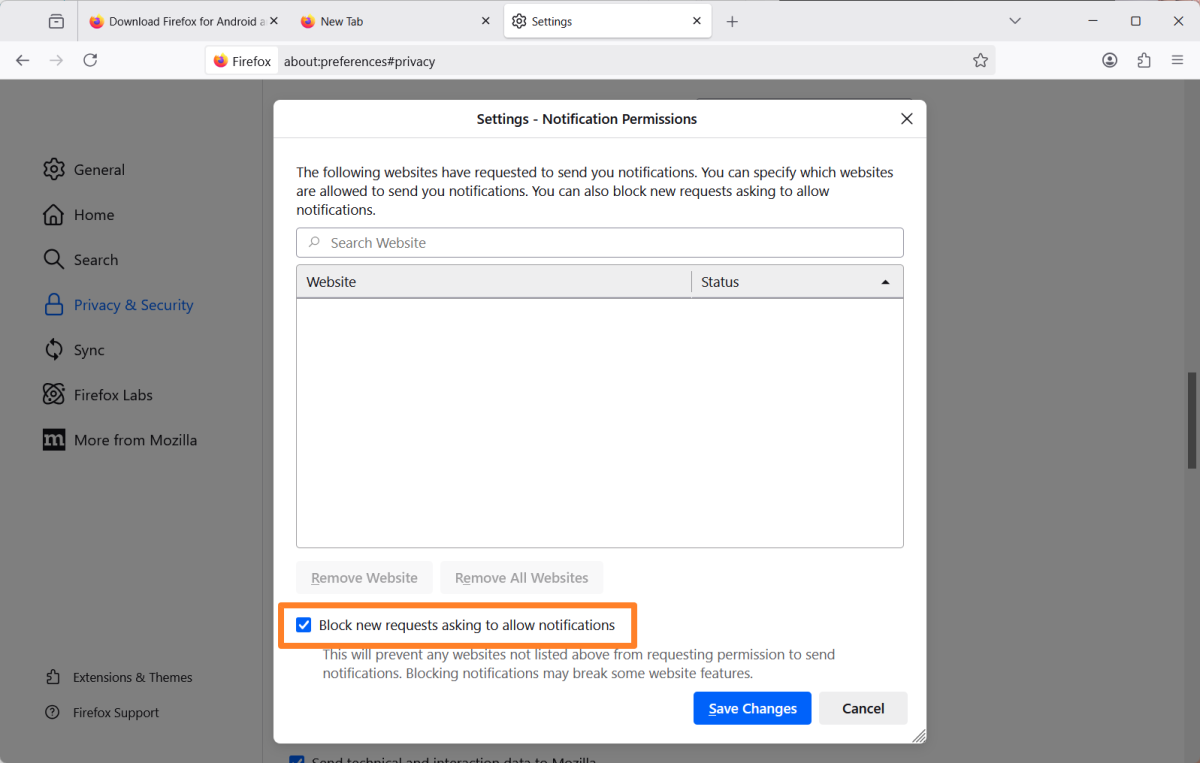
- Load about:preferences#privacy in the address bar or go to Menu > Settings > Privacy and Security > Notifications Settings manually.
- Check “Block new requests asking to allow notifications”.
- If you see websites listed on the page, use the “remove all websites” or “remove website” buttons to block them as well.
- Click on save changes to complete the process.
Disable notifications in Microsoft Edge
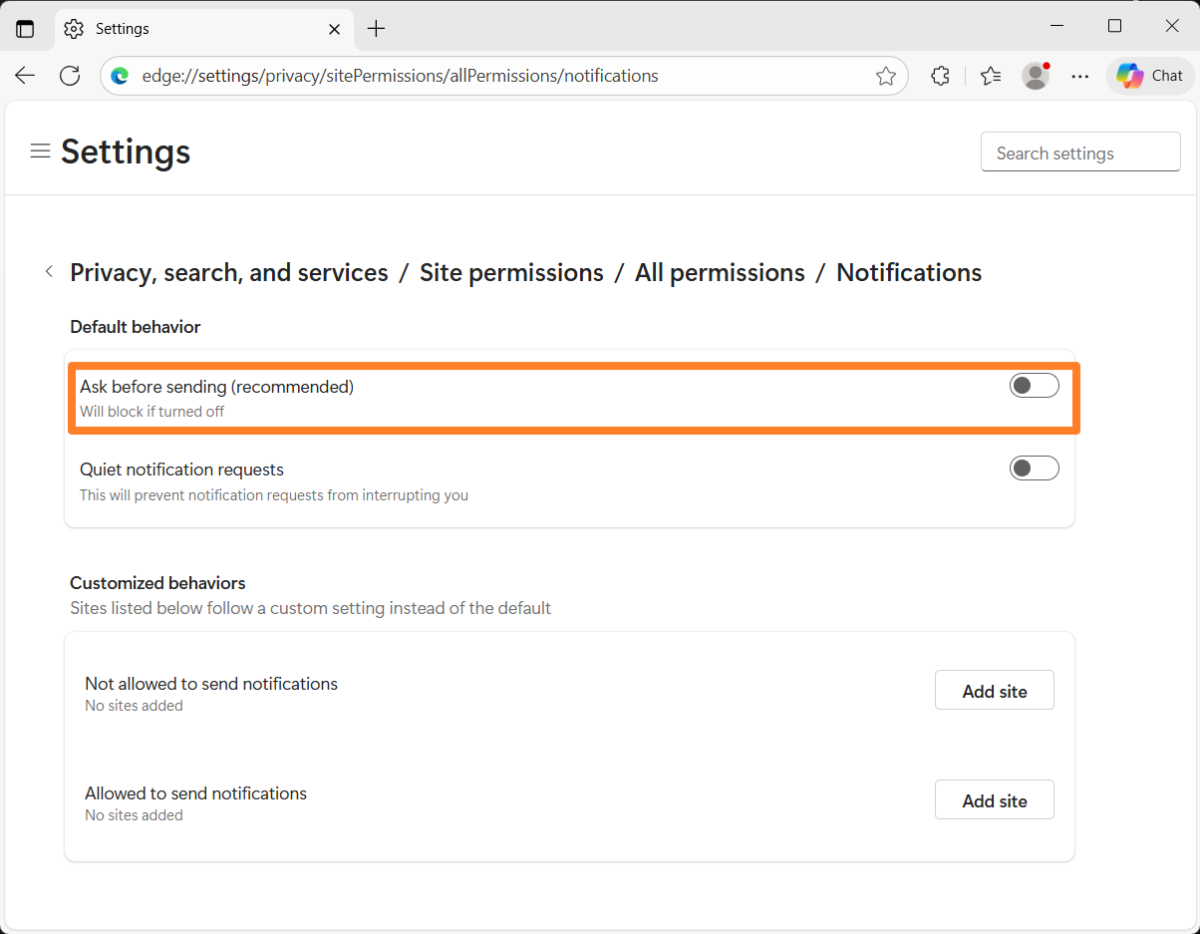
- Load edge://settings/privacy/sitePermissions/allPermissions/notifications in the address bar of the Edge browser, or go to Menu > Settings > Privacy, search, and services > Site permissions > All permissions > Notifications manually.
- Remove the checkmark from “Ask before sending (recommended)”.
- If you see sites allowed to send notifications, you can remove their permissions by clicking on the three dots next to the site and selecting the remove action from the context menu.
Disable notifications in Vivaldi browser
- Open the Vivaldi Menu and select Settings to open the preferences window.
- Navigate to Privacy and Security.
- Scroll down to Website Permissions.
- Switch Notifications next to “Global Permissions” from Ask (Default) to Block.
- If you see individual sites listed, repeat the process for that site by selecting block as the notification.
Disable notifications in Opera Browser

- Load opera://settings/content/notifications in the address bar, or visit Menu > Settings > Privacy & security > Site settings > Notifications manually.
- Set the main notifications preference to “Don’t allow sites to send notifications”.
- If you see sites listed under allowed on the page, then you may remove them with a click on the three dots next to the site and the selection of the remove action.
Now the instructions for blocking notifications for mobile browsers
Disable notifications in Google Chrome mobile
- Open Menu > Settings > Site settings > Notifications in the mobile version of Google Chrome.
- Toggle the icon next to notifications to disable them for all websites by default.
Disable notifications in Mozilla Firefox for mobile
- Open Menu > Settings > Site settings > Notification.
- Switch from the default “ask to allow” to “blocked”.
Disable notifications in Microsoft Edge for mobile
- Open Menu > Settings > Notifications
- Toggle “Allow notifications” so that the entire feature is off (indicated by a gray color)
Disable notifications in Vivaldi for mobile, Opera for mobile, Brave mobile
- Open Menu > Settings > Notifications.
- Toggle “Allow notifications” to disable the feature. You should see “All notifications from this app are blocked” as a result on the same page.
Now you: do you receive notifications from one or multiple websites? Or have you turned off the feature entirely in your browsers? Feel free to leave a comment down below.
Summary

How to block notifications for good in popular web browsers
Description
Annoyed by notifications? Find out how to block them effortlessly in popular web browsers while keeping those you want to receive enabled.
Author
Martin Brinkmann
Ghacks Technology News
Logo

Advertisement
