

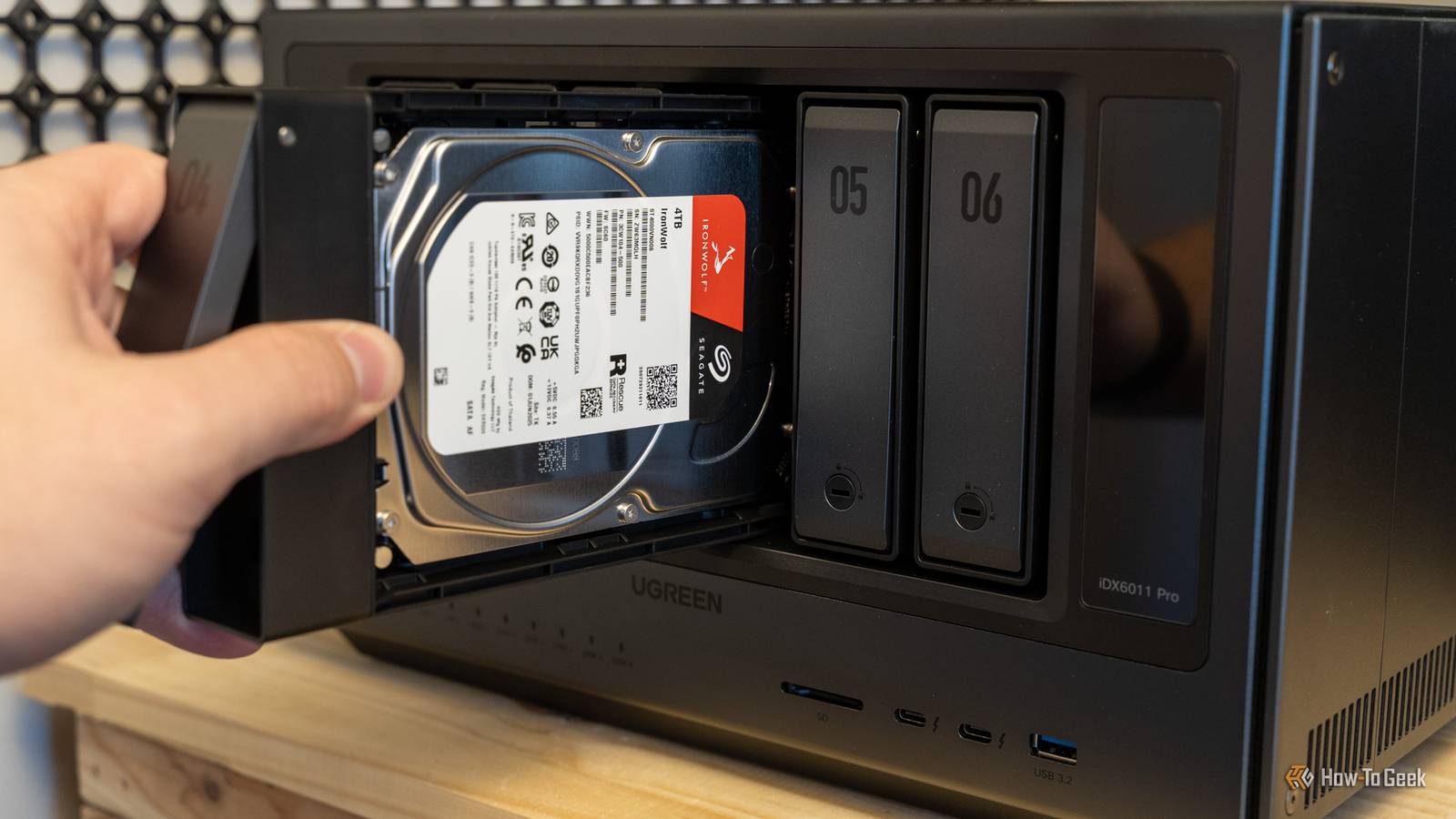
So you just bought a new drive, and you’re planning on moving all of your files over from your older, slower drive to your newer drive. It can be a daunting task, especially if you’re not experienced. It doesn’t have to be, though.
Prepare the drive
Get things ready beforehand
The first crucial step you need to follow is physical preparation and system recognition. Before any data can be transferred, the new drive must be properly connected to your computer. For desktop users, this usually involves mounting the drive inside the computer case and connecting it directly to the motherboard using a SATA cable or slotting an NVMe drive into an M.2 PCIe slot.
Laptop users, or those migrating without installing the new drive internally first, will need an external enclosure or a USB-to-SATA/NVMe adapter to connect the new drive via a USB port.

- Storage capacity
-
2TB
- Hardware Interface
-
PCIE x 4
- Compatible Devices
-
Laptop, Motherboards
- Brand
-
Western Digital
- TBW
-
7300 MB/s
- Dimensions
-
3.15″L x 0.87″W x 0.09″Th
The WD_Black 2TB SSD is great for gaming. It offers read speeds of up to 7,300 mb/s and features an optional heatsink. The drive includes the wd_black dashboard software for monitoring health and customizing RGB lighting on compatible models.
Once the physical connection is established, the operating system needs to recognize the new hardware. In Windows, this requires opening the Disk Management utility, where the new drive will typically appear as unallocated space. The system will prompt you to initialize the drive, a necessary process that prepares the disk for a file system.
You must choose a partition style, generally GUID Partition Table (GPT) for modern computers running UEFI, or Master Boot Record (MBR) for older legacy systems. It is vital to match the partition style of your old drive to avoid boot issues later. For macOS users, the Disk Utility application serves the same purpose, where you will erase the unallocated drive and format it using APFS or Mac OS Extended, along with the GUID Partition Map scheme.
Backup and clean
Take care of your old drive

With the new hardware all fired up, the next logical step involves preparing the data residing on the old drive. Migrating presents an excellent opportunity to declutter your digital workspace, which not only streamlines the transfer process but also ensures you are not moving redundant or corrupted files to your pristine new drive. Begin by thoroughly cleaning your current drive. Uninstall applications you no longer use, delete old downloads, and empty the recycle bin or trash. Utilize built-in operating system tools, such as Windows Disk Cleanup or Storage Sense, to automatically remove temporary system files, internet cache, and unnecessary installation remnants.
Reducing the total amount of data to be transferred will significantly decrease the time required for the cloning process and save valuable storage space on the new drive. Following this cleanup, establishing a robust backup of your critical personal files is an absolute necessity. Even with reliable cloning software, unforeseen hardware failures or power interruptions during the migration can result in catastrophic data loss.
Connect a separate external hard drive or utilize a trusted cloud storage service to copy your most important documents, photographs, and work files. This secondary backup acts as a failsafe; it is not the migration itself, but an independent archive ensuring your irreplaceable data remains secure regardless of the cloning outcome. Relying solely on the original drive during a transfer process introduces unnecessary risk. By meticulously auditing your current storage, eliminating digital bloat, and securing a standalone backup of your critical files, you create a safe, efficient, and minimized data footprint ready for the final transition to the new hardware.
Clone the drive
Your new drive is waiting

The final phase of the migration is the cloning process itself, which involves creating an exact, bit-by-bit replica of your old drive onto the new one. This includes the operating system, hidden recovery partitions, applications, and all personal files. To achieve this, you must utilize dedicated disk cloning software, as standard copy-and-paste commands cannot transfer system files or create a bootable drive.

- Storage Capacity
-
2 – 26TB
- Workload
-
550TB/yr
- Suitable for
-
NAS
Western Digital’s Red Pro NAS hard drives come in sizes from 2TB to 26TB.
Numerous reliable software options exist, both free and paid, such as Macrium Reflect, Clonezilla, or proprietary tools provided by drive manufacturers like Samsung or Crucial.
Upon launching the cloning software, you will be prompted to select the source disk, which is your current, old drive, and the destination disk, which is the newly initialized drive. It is critical to select these correctly; confusing the source and destination will result in the permanent deletion of all your data. Once the drives are accurately designated, initiate the cloning procedure. The software will carefully replicate every sector. The duration of this process depends heavily on the amount of data being transferred and the read/write speeds of the drives involved, ranging from a few minutes to several hours.
Do not interrupt the computer or disconnect any cables during this time. When the software indicates that the cloning is complete, shut down the computer entirely. If you used an external adapter, disconnect it, remove the old drive from the computer’s internal bay, and install the newly cloned drive in its place. Power the computer back on.
It really was that easy
Because the new drive is a perfect clone, the motherboard’s BIOS or UEFI will recognize the operating system, and the computer will boot exactly as it did before, only now operating on the faster or more spacious new hardware. Enjoy your new drive!
