

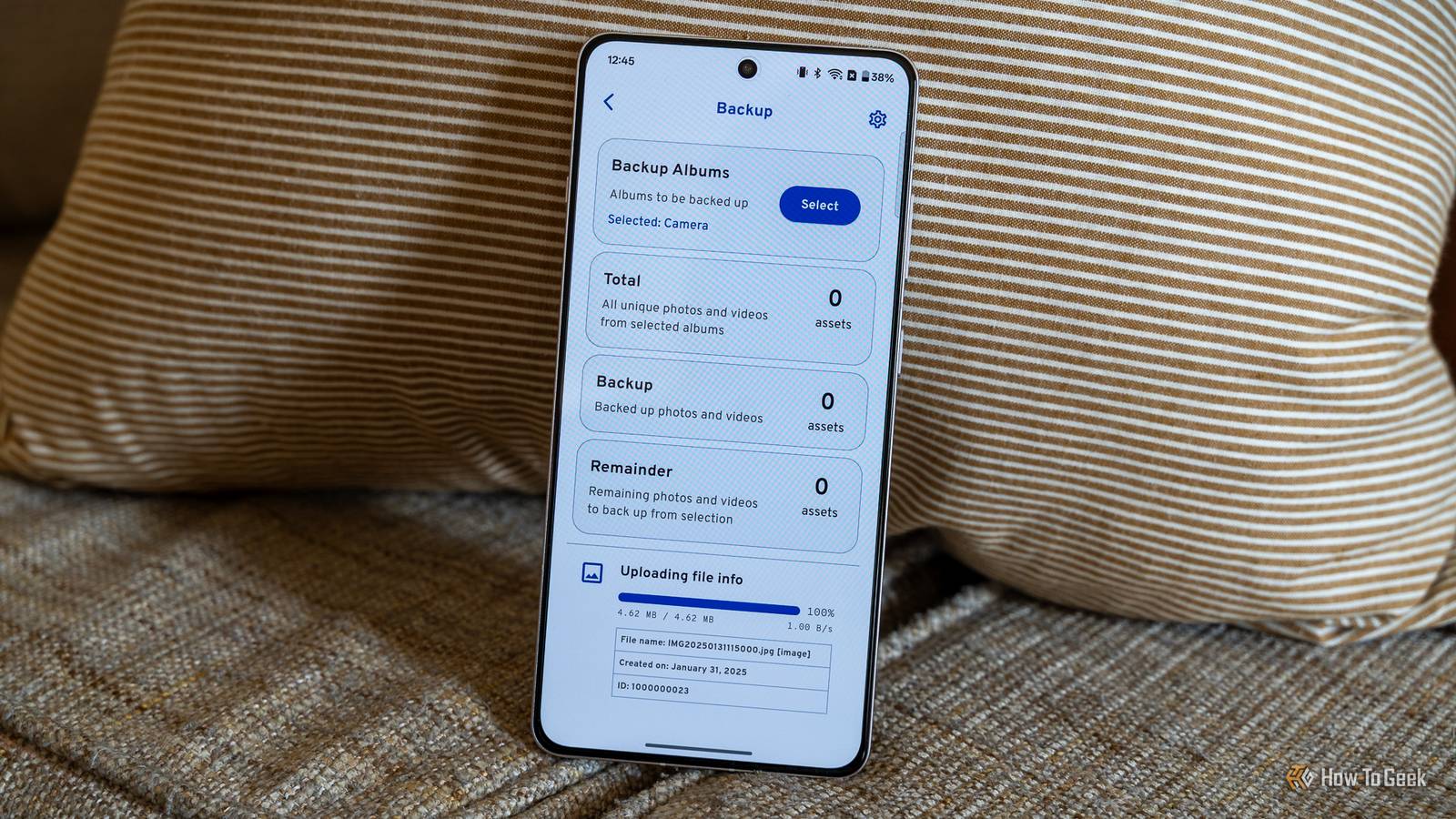
Google Photos caps your free storage at 15GB, and that isn’t just your email—it is pooled between Drive, Gmail, Photos, and every other Google service. Given how many things it gets used for, that storage space disappears pretty quickly. If you need more storage, or if you use iCloud, you’re basically forced to opt into a monthly subscription.
However, if you want privacy, control, and no subscription, there are options. A solution I’ve been using is a Raspberry Pi running Immich. In many ways, it acts as an automatic replacement for Google Photos for every phone in the house, and it isn’t even difficult to set up.
What is Immich, how does the Pi fits in?
Immich is a self-hosted, open-source Google Photos replacement
Immich is a self-hosted photo and video manager that is specifically designed to compete with the experience you get with Google Photos. It has all of the features you’re used to—automatic mobile backups for iOS and Android, timeline views, map views, and shared albums—but you run the server software yourself.
And, importantly, you don’t even have to give up fancy AI features either. Immich handles facial recognition and natural-language smart search. Because these AI features run entirely on your own server, your family’s faces aren’t being sent to an outside service for processing.
A Pi is enough if you’re careful
The Raspberry Pi is the low-power server that actually runs the Immich server software. Immich runs as a set of Docker containers—including the server, a machine-learning container, a PostgreSQL database, and Redis.
That sounds like a lot, but it is manageable for the right Pi.
Never store your actual photo library on the Pi’s SD card. MicroSD cards are prone to failure under heavy write loads. Instead, you attach external storage to the Pi. This allows one single instance to work for multiple people.
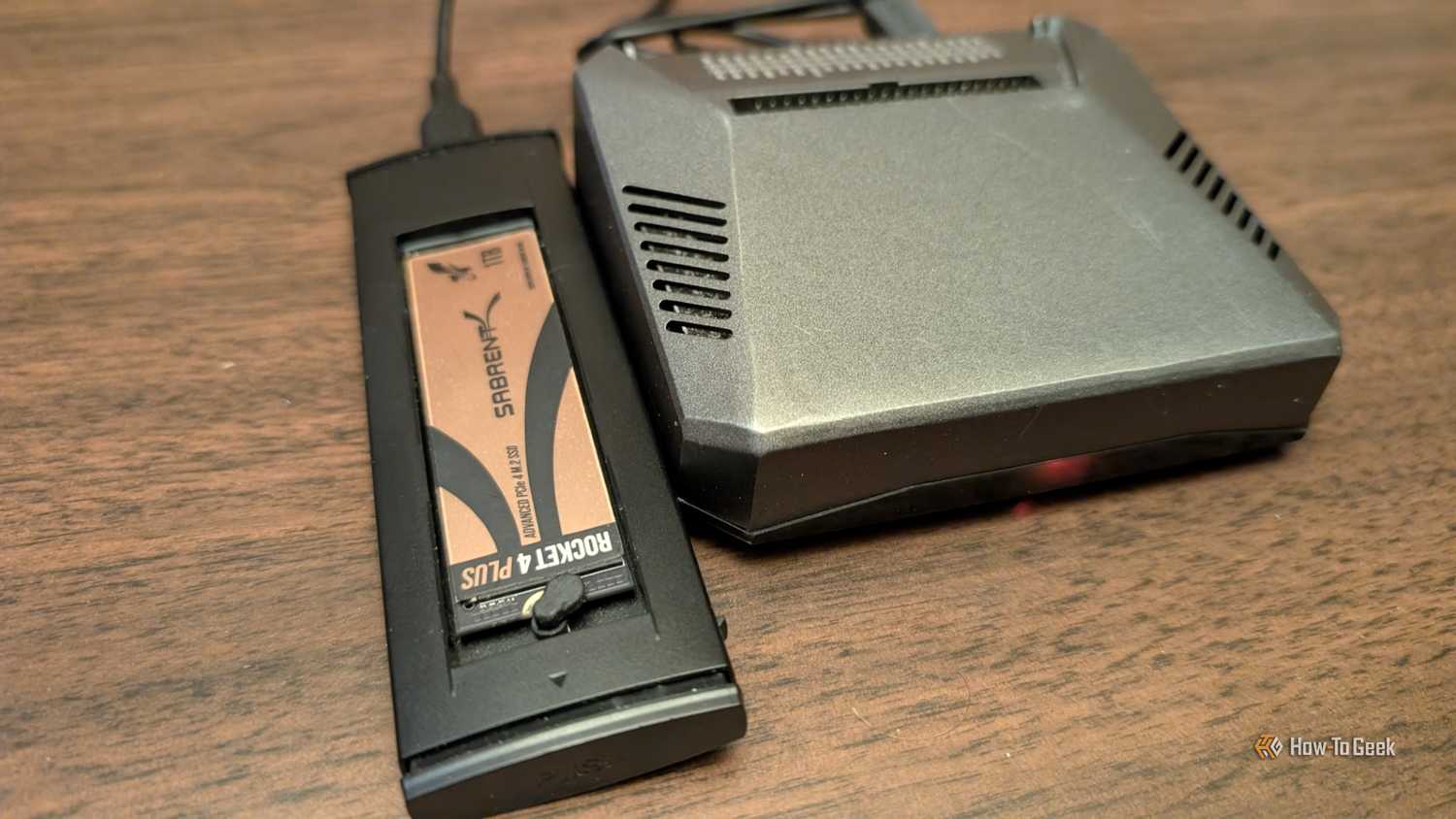
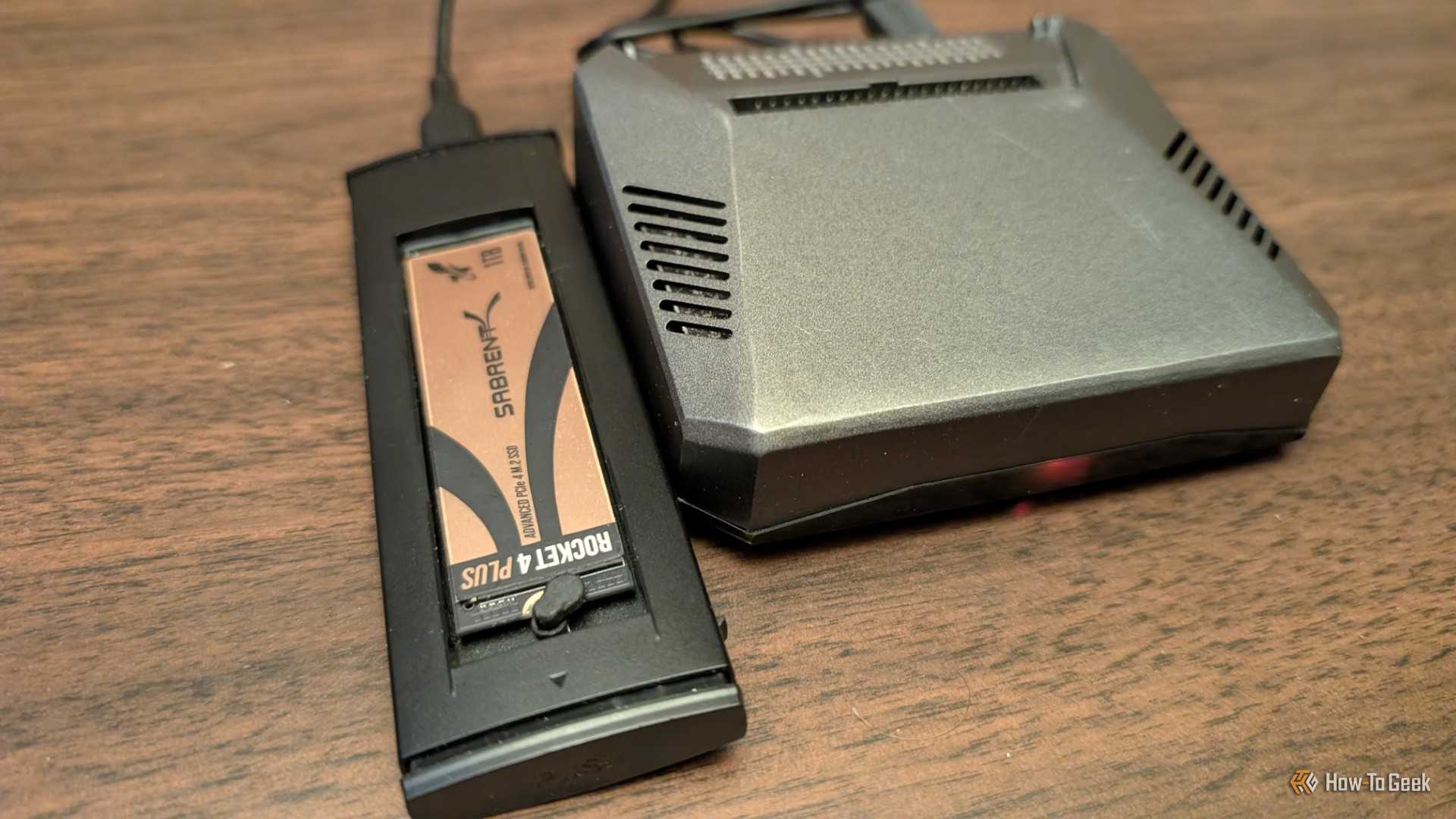
I’d strongly recommend that you use an 8GB Pi 4 or Pi 5 for this if you want decent performance, and I’d specifically recommend a Pi 5 because of the optional M.2 port, which allows you to connect conventional SSDs easily. Alternatively, you could use the Pi 4 with external drives attached to the USB port (which is what I do), but AI features are going to be slower.
Why back up to a Pi instead of the cloud
Privacy and competitive costs
-


-
 Credit: Nick Lewis / How-To Geek
When I first started looking to replace my subscription services, the main incentives were control of privacy. In the case of Immich, my photos stay on hardware I physically own, meaning no one is mining my data to train an AI model.
However, self-hosting is generally pretty cost competitive if you shop carefully. I paid once for my hard drives and SSDs and they’ve been spinning along contentedly for years, and between all of the drives I’m in about $600 for 50TB of storage. That sounds like a lot, but when you consider that 2TB with Google costs $100 yearly, it really isn’t too bad.

- Storage Capacity
-
2 – 26TB
- Workload
-
550TB/yr
- Suitable for
-
NAS
Western Digital’s Red Pro NAS hard drives come in sizes from 2TB to 26TB.
If you’re tired of forking over for a cloud backup solution, and you want something that is more privacy conscious than Google, self-hosting a mini backup solution on a Pi is a good option.
You are your own administrator and IT department
As with all things self-hosted, the big caveat is responsibility. The entire backup is running on your hardware connected to your network using software you manage. When something goes wrong—and it will—you’re going to have to fix it, unless you happen to have a knowledgeable friend to call for help.
There are also some intrinsic gotchas that come with using a Pi in this fashion. I’ve found that automatically remounting drives after a power loss is a little spotty. Not a deal-breaker, but it is something you want to keep an eye on, and maybe set up a mechanism to inform you when it happens.
Setting Immich up
Start by formatting your Pi

To get Immich running on a Pi, I’d recommend a Pi 4 or a Pi 5. You really need the 8GB model for this because the smart features—which use AI to intelligently tag your images so you can search for them organically—are pretty demanding.
You also need an external SSD or HDD to attach to the Pi via a USB enclosure.
With your hardware ready, burn Raspberry Pi OS Lite to a microSD card and configure the Pi so that it is accessible via SSH—you’ll need that later.
Next, I’d recommend using the official Docker Compose to set up Immich. Make sure your library path points directly to that external drive.
Once the server is live, install the app on every phone you want to back up and create individual accounts for everyone, and toggle on the automatic background backup.
If you run into an issue with HTTPS, you may need to use something like Tailscale to ensure your devices can sync while you’re away.
A whole-house backup solution with one tiny device
One Raspberry Pi and a hard drive or two can create a fairly reliable backup solution for multiple phones and tablets. The only real snag is that the AI features won’t be superfast because of the hardware limitations of the Pi.
You also need to make sure that you have multiple backups of your most important photos elsewhere. Immich is a great program, but it is only as reliable as your storage. Hard drives suffer mechanical failures and SSDs eventually wear out.
Don’t lose important memories when the solution—a 3-2-1 backup setup—is pretty easy.
