

Summary
- Linux Mint offers a lot more flexibility and customization than Windows, yet it’s still polished and usable out of the box.
- Operating system updates in Mint are seamless, with no forced updates and long-term support.
- Linux Mint has a great selection of pre-installed apps and an easy package manager, but may lack compatibility with some Windows apps.
I had a lot of free time during summer breaks, and my favorite pastime was tinkering with my tech. I’d tinker with software, PCs, and phones mostly. When I found myself getting bored with Windows (which had been my only daily driver forever), I decided to give Linux Mint an honest try.
I’d used Windows my whole life
I’ve been daily driving Windows since XP. At that point, Ubuntu was my sole exposure to the world of Linux. I tried Ubuntu because it had some neat customizations. I tested the built-in customization of GNOME (the default desktop environment for Ubuntu) inside a virtual machine, and the whole operating system hooked me from the get-go.
I use Adobe apps often (which aren’t available on Linux), and that kept me from installing Linux on bare metal (in other words, replacing Windows with Linux). I eventually found out about WINE (a compatibility layer that runs Windows apps without emulation) while looking into running Photoshop on Linux. It got me excited about the idea of switching again.
WINE could handle incompatible apps, and native Linux apps would work for everything else.
Prep and installation
Picking the distro was easy. Mint or Ubuntu crop up whenever you look for beginner-friendly distros. I had already tried Ubuntu, so Mint won by default (it’s an Ubuntu derivative, so that helped too).
I didn’t want to lose access to my Adobe apps, so I decided to dual boot (running Windows and Linux side-by-side). That way I could jump back to Windows as a fallback. It sounds like a great idea on paper, but a lot can go wrong with dual-booting. You’re liable to mess things up if you don’t know exactly what you’re doing, as I did on my first try (more on that in just a bit).
So I downloaded the Linux Mint ISO, flashed it on a USB key, and tried installing Linux Mint alongside Windows.
These days, the new installers of Ubuntu and Ubuntu derivatives have a special button for quickly creating a dual-booting system with Windows. That didn’t exist back then. You had to manually create and resize partitions in GParted to install Linux Mint. During the manual setup, I accidentally wiped one of them with GParted. I eventually managed to make the dual boot work.
I also installed GPU drivers using the built-in Driver Manager. I had heard of some driver trouble with NVIDIA cards on Linux, but Mint automatically found and installed mine. I couldn’t get my graphics tablet to work with it, however, because the manufacturer only supplies its drivers for Windows and macOS.
First impressions
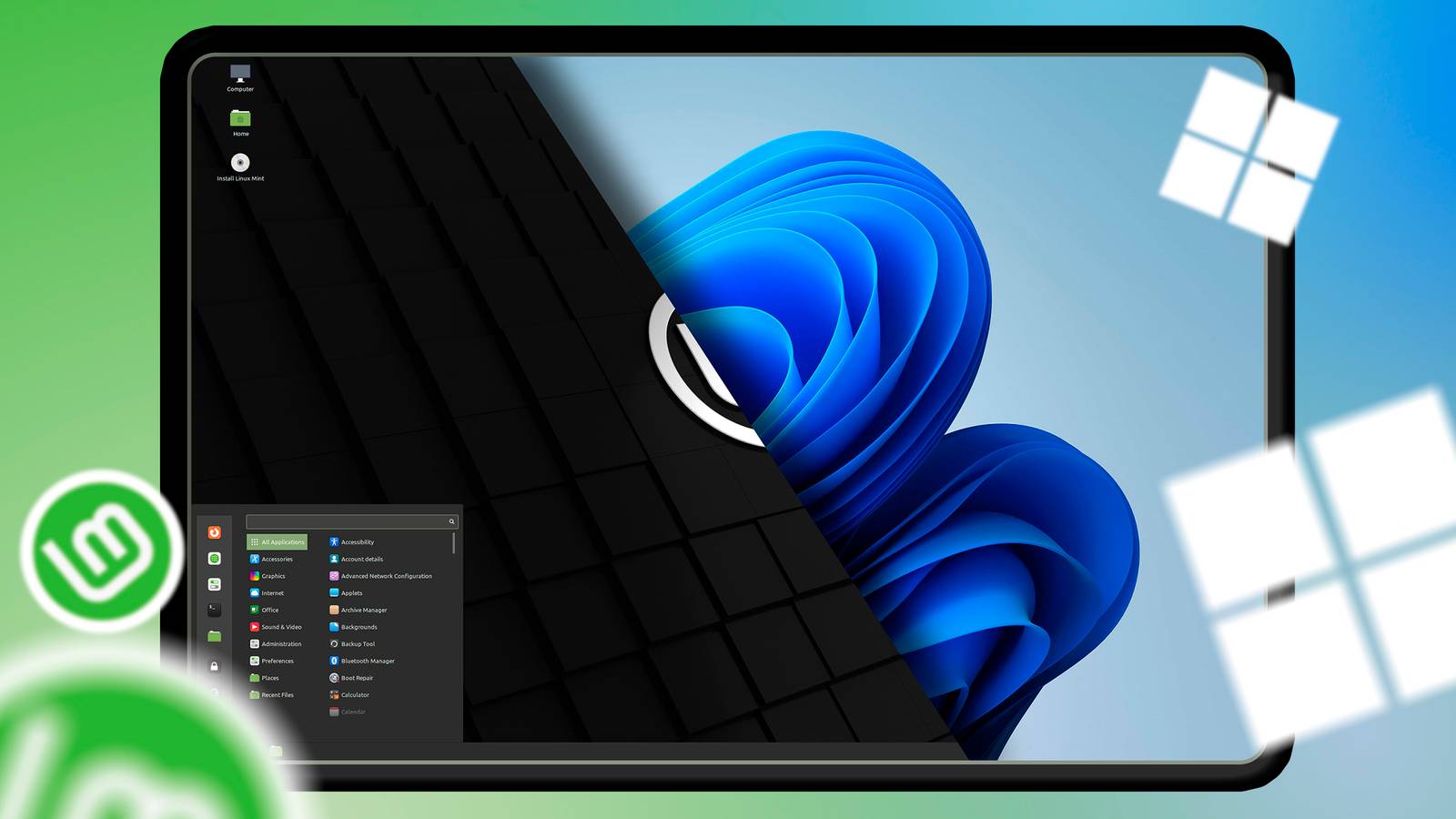
By default, the Linux Mint Cinnamon layout looks a little like Windows—you get a start button in the corner, some app shortcuts on the taskbar, and a notification tray on the right—so I knew where to find everything.
Mint has a start menu far superior to the one on Windows. It’s fully customizable, from the shortcuts to the size of the menu itself. You can just drag from the corner to resize the start menu. Add custom layouts, custom labels, and groups to really make it you own. Even if you use the defaults, there aren’t ads or any bloatware in sight.
I love the Mint applets (they’re little widgets like Windows once had), and the sticky note applet is my favorite. There’s a really handy Hot Corners feature that caught my eye, too. You can hover your mouse in any corner to do a defined action. Set it to quickly open a screen, take a screenshot, switch workspaces, or anything else you like. One taskbar isn’t enough for you? Mint can give you multiple. Once again, they’re fully customizable.

Operating system updates are objectively better on Linux Mint. Mint handles all updates in the background, just as they should be. You’ll never see a forced update screen when booting or shutting down. There is no telemetry, no ads, and no AI junk. There are annual LTS (long-term support) releases that keep getting updates for at least 5 years so you can stay on your preferred version for a long time.
I found Mint to be a lot more flexible and customizable than Windows. It seems like this OS gives me complete control over how it looks and works. It just feels fresh.
There is a learning curve here, however. Your experience with Windows is not going to fully translate. I had to reconfigure some keyboard shortcuts to better match my Windows workflow. The built-in keyboard app made that easy. On Windows, you need to install PowerToys to change keyboard shortcuts.
Getting and running apps
Linux Mint has an amazing selection of pre-installed apps. There’s one for every job, and they’re all well-made, polished apps. You can always download more using the synaptic manager, the store, or the terminal. Compared to Windows, installing Linux apps is such a breeze. You can type a quick command or double-click a .deb package to install.

Using a single command in the terminal to get or remove an app is just so much more elegant. The mind boggles why the Linux way is not the default for every operating system out there. It inspired me to start using a similar package manager on Windows, too.
Linux has its own ecosystem of apps and services that don’t always overlap with Windows. If you try to make a switch, you’ll probably have to find and get used to some new apps.
Even though I really wanted to, I couldn’t get very far with Mint because I couldn’t run some Windows apps. WINE is a compatibility layer for running Windows apps, but they should add a huge asterisk next to it because it only supports a limited library of apps.
A few surprises
I should have looked into it deeper before jumping head first into it. I couldn’t manage to use Adobe Photoshop or Adobe Illustrator on it. I did some digging and learned that someone was able to run a 10-year-old version of Photoshop on WINE. I followed their steps and managed to get it up and running on my Linux Mint installation too. But that old Photoshop CS6 just didn’t cut it for me.
Between the Adobe creative apps not working and no software support for my drawing tablet, I couldn’t get any real work done on Linux Mint. It wasn’t a loss, though, because trying this well-thought-out OS was a delight.
I did end up sticking with Mint for everyday computing and I would spin up Windows when I had to work. These days, I feel right at home with Mint.
The verdict: How does Mint compare?
Linux Mint is designed to put the user first. “Your computer, your rules,” it says on the Linux Mint landing page, and I wholeheartedly agree. Microsoft has been steadily taking control away from the user since Windows 8, and a lot of people feel like they don’t even own their computer anymore. Unfortunately, I can’t get rid of Windows because I’m locked into some apps. If I wasn’t, I would replace it in a heartbeat. Unless you have to rely on proprietary apps that aren’t available on Linux, I recommend switching to Linux Mint. It’s just better.
