

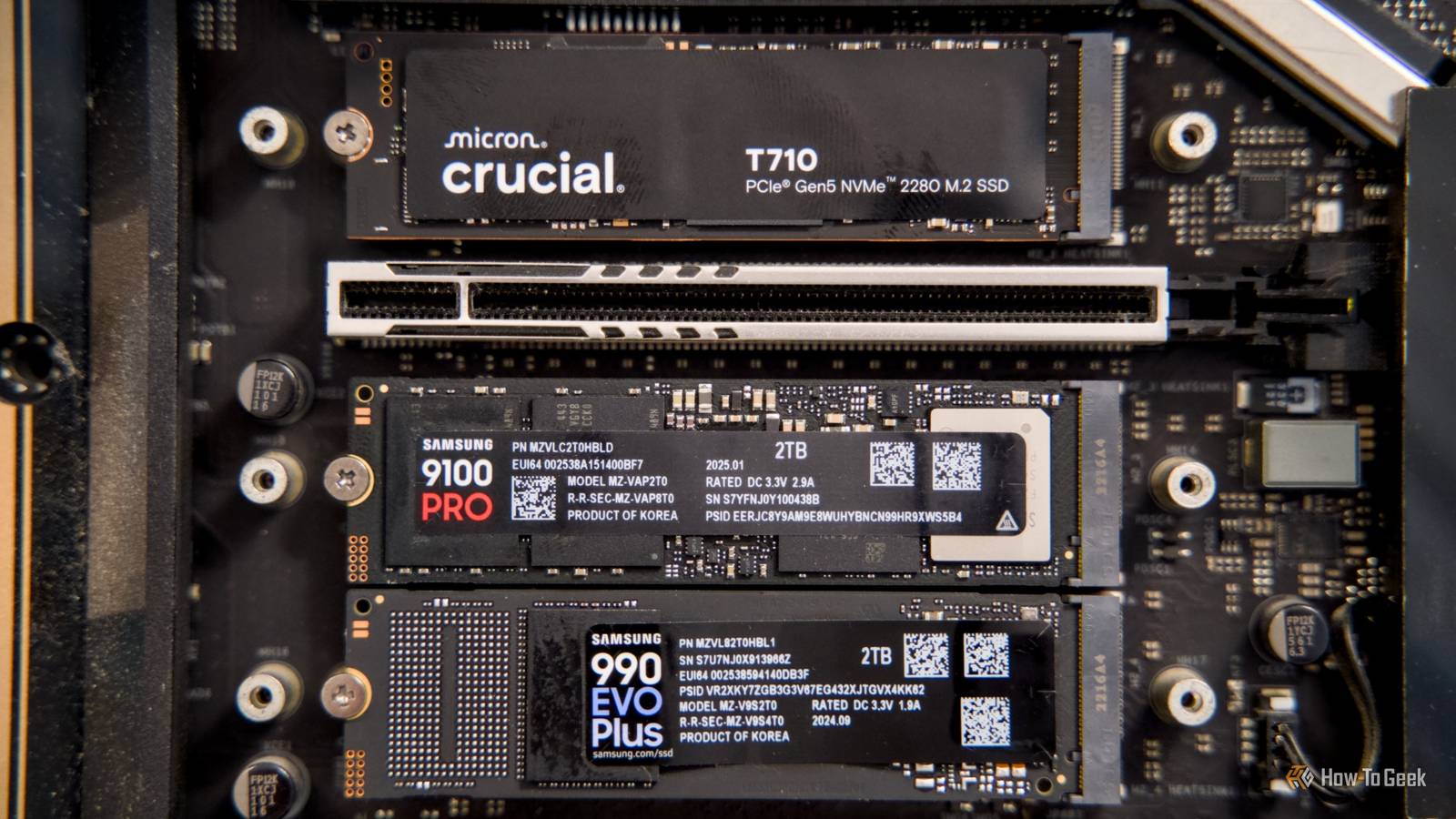
NVMe SSDs are quickly becoming one of the most expensive components in a typical gaming PC. Yet despite their importance, many people ignore a crucial factor for performance and longevity: cooling.
Running a bare NVMe without a heatsink risks lost performance and even permanent damage to your pricey drive. Luckily, there’s a fix—and it’s cheaper and easier than you think.
Overheating slowly kills your NVMe
And you might not even notice it
Modern M.2 NVMes are designed to run relatively hot by design. Most can handle operating temperatures of up to 70°C before they start slowing down transfer rates to lower the temps.
In fact, it’s even believed that overcooling can actually reduce performance because flash memory becomes more “malleable,” but the controller works best when it’s as cool as possible. So, you don’t really have to worry too much about overcooling your NVMe, but you absolutely should worry about overheating.
However, it’s worth noting that not all NVMes get so hot that they exceed their safe operating temperatures.
Typically, the faster an NVMe is, the hotter it’ll run. While many PCIe Gen 3 NVMes are designed to operate just fine without a heatsink, PCIe Gen 4 and especially Gen 5 NVMes generate enough heat that it can become an issue.
For instance, JayzTwoCents ran a 15-minute stress test on the Samsung 990 Pro 1TB PCIe Gen 4 NVMe, and the drive quickly reached and sustained temperatures in the 85°C to 90°C range—which is definitely hot enough to damage the NVMe if it ran at those temps constantly.
However, these temperatures don’t occur randomly, as your NVMe only uses a fraction of its speed during light workloads. But if you play games with lots of large files or frequently transfer large files to and from your NVMe, you will hit these dangerous temperatures more often than the drive is designed to handle.
Moreover, since the NVMe sits right between the GPU and CPU, the surrounding air can get rather hot when your PC is under load.
If you suspect that your NVMe is overheating, you might have already noticed that it’s struggling to reach the loading times and file transfer speeds you used to get when the drive was new.
If you’ve already ruled out potential software problems, there’s a good chance your drive is overheating and could even be failing.
However, more often than not, you won’t notice the warning signs of overheating before it’s too late. A PCIe Gen 4 NVMe can reach sequential read speeds of 5,000 MB/s to 7,000 MB/s, so even if it’s running at 50% of that speed, most day-to-day tasks won’t reveal the slowdown. Browsing, document editing, and even most gaming loads aren’t enough to saturate a 5,000 MB/s drive.
In other words, unless you’re moving hundreds of gigabytes regularly, you’ll rarely feel the impact of overheating—even though it’s slowly cooking your expensive NVMe.
I accidentally cooked my SSD to death: Don’t make my mistake
Everyone makes mistakes. Expensive, expensive mistakes.
How to check if your NVMe is running too hot
You need just one app
Your NVMe has built-in temperature sensors, so checking its operating temperature is surprisingly straightforward. The easiest tool for this is CrystalDiskInfo, which also reports your SSD’s health status.
Another similar tool is HWiNFO, which can monitor both temperature and overall drive health.
Once you’ve downloaded CrystalDiskInfo, you can check your NVMe’s temperature. The main temperature displayed is the controller temperature. If you hover over it, you can see readings from the other sensors—usually the NAND memory and PCB temperatures. The controller temperature is the most important, so that’s the one to monitor.

You can press F5 to refresh the app to get a real-time reading, or, alternatively, set up an automatic refresh time frame by going into Function > Auto Refresh > selecting your preferred refresh time.
However, if you truly want to know what your NVMe’s typical operating temperatures are, you’re going to have to put it under load. Open the graph in CrystalDiskInfo by heading over to Function > Graph.

The graph will help you track your NVMe temps. Next, place the NVMe under load by playing a demanding game or transferring a large file from the NVMe to a different drive. If you want to be extreme about it, you can run a stress test tool like CrystalDiskMark. Just keep in mind that stress tests push the SSD to its absolute limit and can cause some overheating, even with a heatsink.
If you notice that your NVMe regularly exceeds its maximum operating temperature (usually around or slightly above 70°C) during workloads typical for your PC, it’s very likely overheating and could benefit from a heatsink.
Protect your drive with a cheap heatsink
Or take a quick look at the heatsink you’re already using

You’re probably going to scoff at the idea of having to buy yet another part for your PC. The good news is that an NVMe heatsink doesn’t have to be some special, overengineered component to do its job.
If your motherboard included an M.2 heatsink, which even many budget and mid-range boards do, you can absolutely just use that. My ASRock B650M PG Riptide came with one, and that’s what I’ve been using on my NVMe since the day I built the PC.
If you’re already using the heatsink that came with your motherboard, have you made sure you removed the protective film from the thermal pads underneath it? If not, now is a good time to check.

If your motherboard didn’t come with a heatsink, or if you have multiple NVMes but only one included heatsink, good aftermarket options are dirt cheap. For example, the ID-COOLING ZERO-M05 is often regarded as one of the best low-profile NVMe heatsinks, and you can regularly find it for around $5 on sites like AliExpress.
Another option you can get on Amazon is the ARCTIC M2 Pro, a great-looking heatsink from a highly reputable brand.
Stop neglecting your SSDs!
Of course, you don’t have to stick to low-profile heatsinks if your goal is to squeeze every bit of performance out of your NVMe. In that case, something beefier like the ID-COOLING ZERO-M15 or even an NVMe heatsink with a fan, such as the Thermalright HR10 2280 PRO, makes more sense.
Frankly, these beefy heatsinks are overkill for most people, but if you want the absolute best speeds and longevity from a PCIe Gen 5 drive, this is the way to go.
In any case, having some sort of heatsink on your NVMe is easily one of the best investments you can make for your system.
My PC took 30 minutes to boot until I fixed this one SSD problem
SSD problems can make your PC entirely unusable
