

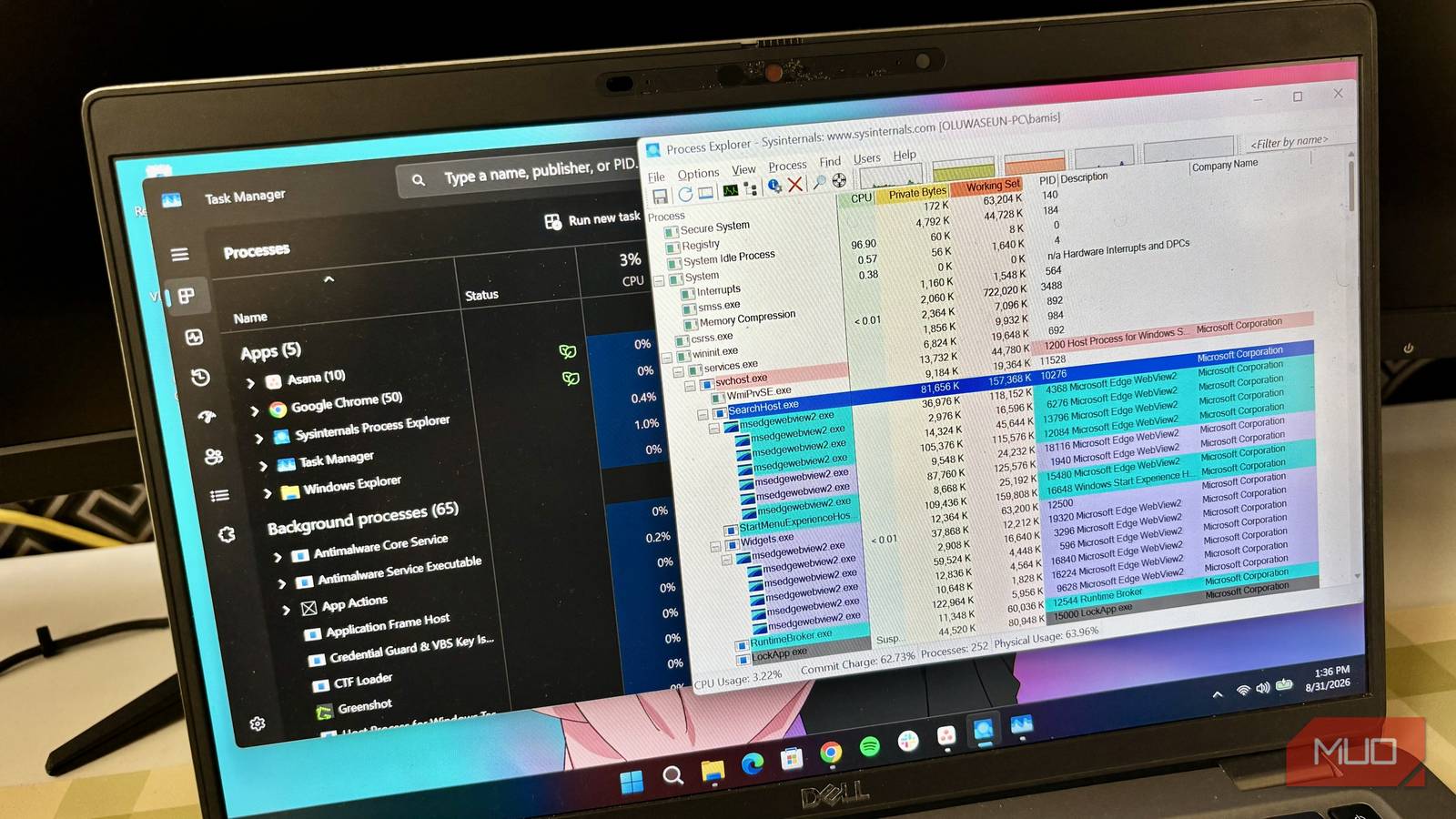
Whenever my Windows laptop starts lagging or an app freezes, my immediate instinct is to open Task Manager. I know I’m not alone.
Task Manager has been a core Windows staple for decades. It gives you a quick snapshot of system resources, lets you force-close unresponsive apps, and manages startup programs.
But Microsoft actually maintains a second “Task Manager” that does all of that — and much more — for free. In fact, it’s been available for nearly 25 years. It’s called Process Explorer, and once you start using it, standard Task Manager quickly begins to feel lightweight by comparison.
Microsoft bought Process Explorer in 2006
The tool came from Sysinternals, but it’s now part of Microsoft’s toolkit

Microsoft didn’t originally create Process Explorer. The tool was made by Mark Russinovich and Bryce Cogswell, who are well known among Windows power users for creating advanced system tools. They created Sysinternals, which is a collection of free system tools and resources for Windows and Linux. And you guessed it; Process Explorer is part of Sysinternals.
Microsoft bought Sysinternals (or rather the parent company, Winternals Software) in 2006, bringing Process Explorer and several other useful Windows tools under its umbrella. But despite Microsoft owning Process Explorer for two decades, most Windows users today have probably never heard of it. It isn’t installed alongside Task Manager, and Microsoft doesn’t exactly advertise it inside Windows.
You can get Process Explorer for free from Microsoft’s Sysinternals website. The download comes as a ZIP file, so you simply need to extract it and run the tool. Once you open it, the first thing you will notice is that it looks like Task Manager’s more intimidating older brother. The interface isn’t nearly as polished as Windows 11’s Task Manager, but the amount of information it gives you makes up for that.
Process Explorer is like Task Manager on steroids
It tells you far more about what’s actually happening on your PC
Task Manager does a decent job when it comes to basic troubleshooting. You can see which apps are using the most CPU or memory and close them when something goes wrong. Process Explorer takes that a step further. You can do the regular things you do on Task Manager, like restarting or stopping processes. But you also get some extra features, one of them being the process tree. So, instead of showing every running process as a flat list, Process Explorer displays applications and their child processes in a color-coded hierarchy.
This makes it easier to see exactly what launched a particular background process. For example, you might see a main application spawning multiple child processes underneath it. Task Manager can show some of this information, but Process Explorer makes those relationships much easier to understand.
It also provides far more detailed information about individual processes. Task Manager often groups background services under generic names like “svchost.exe”, which doesn’t really tell you much about what’s going on. Process Explorer, though, lets you hover over a process and see additional information like file paths and command-line arguments. You can also right-click a process and select Properties to get more information like performance history.
Then there’s the lower pane, which is my favorite feature about the tool. We’ve all seen the frustrating “file is open in another program” message without Windows telling us which program is causing it. Well, on the lower pane, Process Explorer can show files, registry keys, or DLLs that a process/program is currently using. This way, you can easily find a process that locks any file and then close it.
Process Explorer can even help you spot malware
VirusTotal integration adds another layer to troubleshooting suspicious processes

Malware doesn’t announce itself when it gets onto your PC. It can arrive through a download, a compromised website, a fake software update, or an email attachment. Microsoft Windows Defender does a good job of blocking many common threats, but some can slip through the cracks. Most of the time, malware can appear as a process running in the background.
The problem is that Windows can have tons of processes running at the same time, so it becomes harder to tell which process is legit or not. In that case, Process Explorer’s VirusTotal integration can come in handy. VirusTotal is an online service that checks files against multiple antivirus engines and security databases.
Process Explorer can submit information about any running processes and show their VirusTotal detection results directly in the interface. So, if you come across a process with a suspicious name or one that’s consuming an unusual amount of resources (not you, Google Chrome), you can check whether security engines have flagged it as malicious. Just right-click the suspicious-looking process and select Check VirusTotal.com.
Sure, a VirusTotal detection isn’t outright proof that something is malware, as false positives can happen sometimes. At the same time, a clean result doesn’t necessarily guarantee that a file is completely safe either. But still, having that information available directly inside a process-monitoring tool is pretty useful.
Task Manager is still enough for most people
Task Manager isn’t going anywhere, and to be fair, most Windows users probably don’t need anything more advanced. If an app freezes, Task Manager lets you close it. If your CPU usage suddenly spikes, you can quickly see what’s causing it. But whenever I need to dig deeper, Process Explorer is now the tool I’d rather open.

- OS
-
Windows
- Developer
-
Microsoft Sysinternals
- Price model
-
Free
