

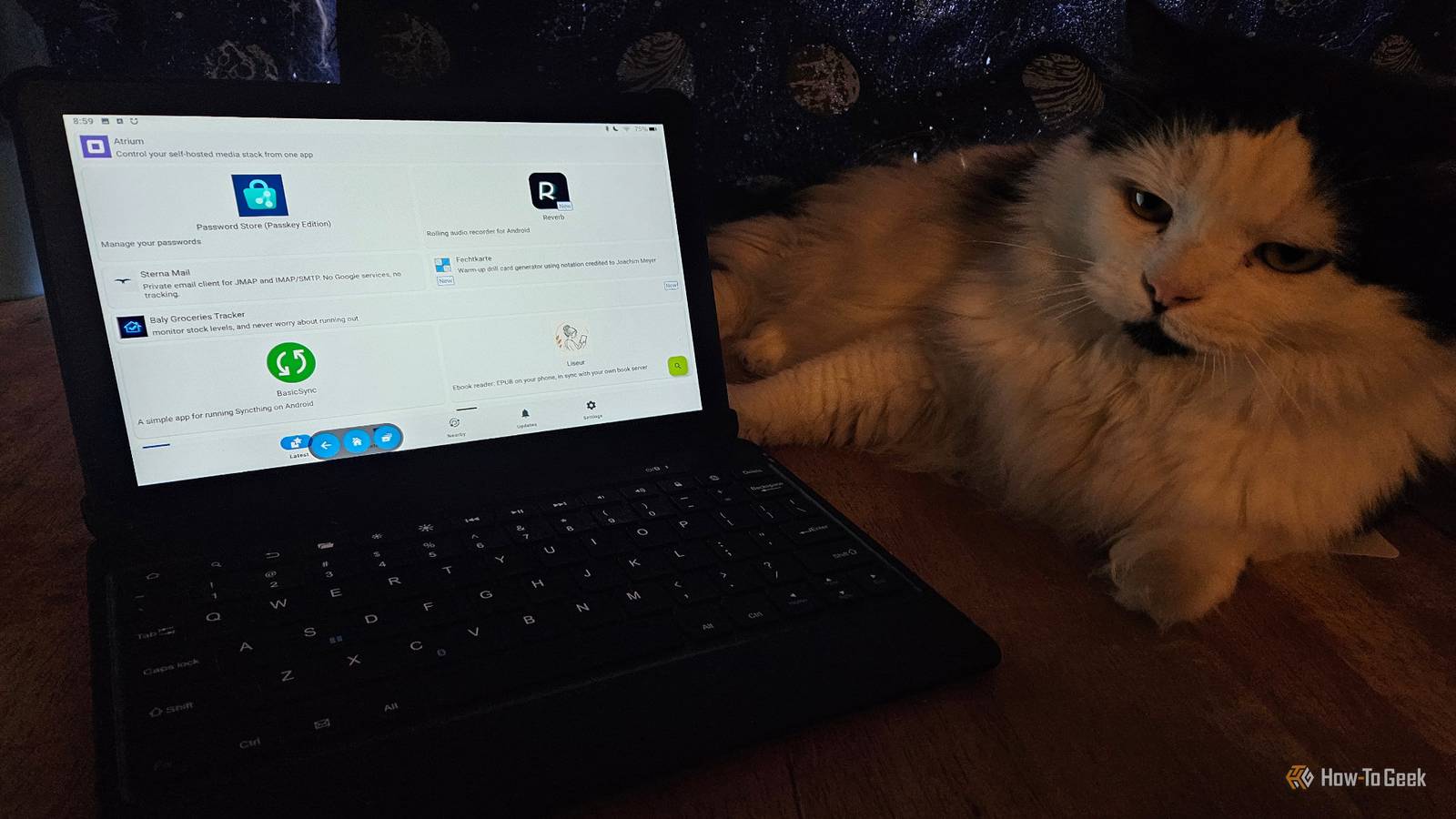
There was a time when I loved Amazon Fire Tablets. Modding them and repurposing them is a hobby of mine. One reason, aside from curiosity (or the old standby of “because I can”) is that Fire OS has just been getting progressively worse. So I’m fighting back the best way I know how: with knowledge and a few nifty power-user tricks.
Fire OS is much worse than it used to be
What happens when your entire support system is ads

I never felt that Fire OS was all that bad. Sure, the ads were a pain, and it was a bit slow at times. But it was otherwise fine for the things I originally used it for (reading and audiobooks). When I branched out a bit and decided I wanted full tablet functionality is when the cracks really started being noticeable.
Fire OS is slow and doesn’t work as well as I remember on a stock device, especially an ad-supported one. It’s sluggish. It can’t handle multiple processes. The standard Fire OS apps really aren’t that great, either.
I’ve repurposed about half a dozen Fire Tablets (two for myself and four for family), and I’ve been noticing slowdown and other bloat more and more, not to mention Amazon’s constant push for me to buy things. So it only makes sense to make some mods and adjustments to my devices.
Installing new app stores
The simplest way to improve the Fire Tablet experience

The Amazon App Store is looking thin these days. Apps I used to be able to get there simply don’t exist anymore. And its performance is just plain awful. It’s almost unusable.
So, the very first thing I do on any Fire Tablet is install F-Droid directly from its official website. F-Droid is an app store for open-source Android apps and (in my experience) often has better or more useful software for the type of things I do on my devices.
To install F-Droid, the Google Play Store, or other APKs, you need to let your browser or app store install them. This is usually found in Settings -> Security and Privacy -> Apps from Unknown Sources.
After that, I’ll install the Google Play Store. It can be a little complicated if you’ve never done it before, but it’s worth it.
Fire OS has the Amazon Appstore, but it’s limited and has little variety. If you want to install a lightweight writing app like Joplin or even an alternative reader app like CDisplay Ex, you’re out of luck. This is a pretty common issue among Fire Tablet users, and I’ve never found much value in the Amazon Appstore.
So, I disabled it in favor of F-Droid and the Google Play Store instead.
Tweaking settings and processes
Taking advantage of settings to make some changes
One way I’m fighting back against the enshittification of Fire OS is pretty simple: I enabled Developer Options. This not only allows me to access it using Android Debug Bridge (which is important), but I can also change settings that are otherwise unavailable.
Use Developer Options at your own risk. Fire Tablets are not immune to bricking, so be sure you understand what you’re doing before making any changes.
The big one for my current device is background processes and memory. The Fire Tablet doesn’t have a lot of RAM to begin with. When there are multiple apps or processes running, it goes agonizingly slow. Restricting background processes to no more than 2 at a time sped up my tablet quite a bit.
Go to Device Options -> Developer Options -> Background Process Limit -> No More Than 2 Processes. You may want to reduce it to 1 or increase it to 3. The first time I did this, I noticed an immediate difference, and now it’s a standard procedure for any Fire Tablets that cross my path.
I also tweak memory management by turning Logger Buffer Sizes off. This just frees up very small bits of RAM and reduces the number of CPU cycles that track system logs. I also check any running services and stop the ones I don’t feel are necessary.
The last thing I do is turn off window animations. Developer Options help, but taking advantage of ADB and other tools makes things even better.
The next best thing to rooting

Most Fire Tablet owners probably don’t want to go through the trouble of rooting their device and doing physical modifications. Fortunately, there’s a non-root method: using Fire Toolbox.
I tried the Canta and Shizuku method of debloating my tablet, but Fire OS just kept reinstalling everything. The Fire Toolbox software (which can be found at XDA Forums) is a godsend for debloating later-model Fire Tablets.
You can use it for a basic debloat, kill the ads, and install a custom launcher. More recent updates can also help you install the Google Play Store or F-Droid. It worked great on a later tablet, but in my own experience, I had better luck just sideloading them on one of my older tablets.

After disabling the apps you don’t want, you can install a new launcher. I like Nova and Niagara. Nova uses an app called Automate to re-map and restructure the Fire Tablet’s UI and customize it to your liking.
It’s not perfect, but at least you can forget you’re technically still inside Fire OS while using your device. I use Fire Toolbox on every compatible Fire Tablet I’ve ever modded and can’t recommend it enough. It’s pretty awesome and is one of the best tools to fight back against Fire OS’ increasing awfulness.
If you can’t beat Amazon, repurpose your tablet
I wrote this article on a modded Fire Tablet. Sometimes, I’m tempted to throw this thing out the window and be done with it. But I have a soft spot for my modded Fire Tablet. So I look for ways to make it run better and repurpose these devices. So far, it’s working. And I intend to keep up the fight as Amazon continues to make its best products worse.
