

Buying a bigger SSD has officially become one of my least favorite fixes for storage. The reason is simple: yesterday, I went to buy a similar SSD to one I had bought about three months ago, and was told the price had doubled.
Luckily, on Windows you can shrink files in place; it doesn’t require creating ZIP archives or extracting anything. This may be the time to test it on your folders and decide if it’s an option worth considering before making a storage purchase.
Tick a box, skip the archive
Windows shrinks the folder in place, and NTFS does the work
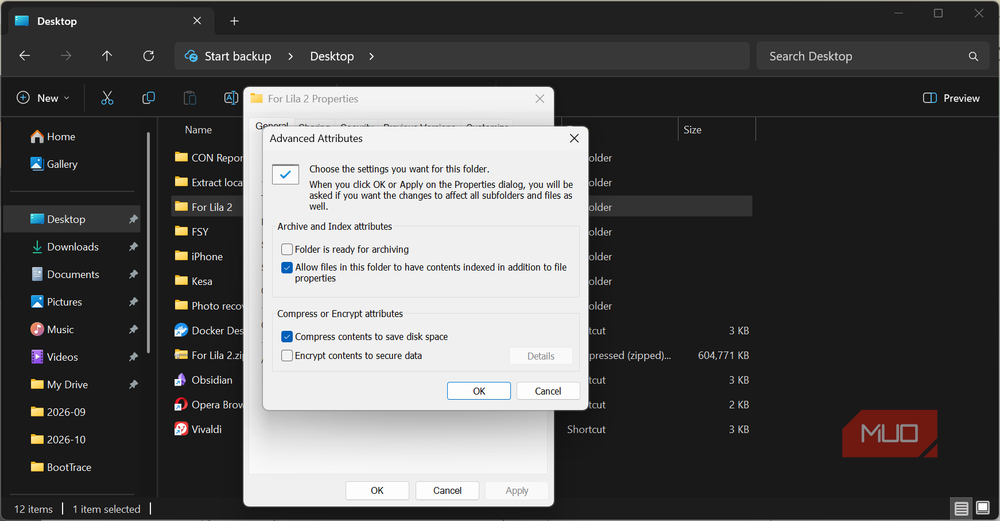
The process for this compression is straightforward.
- Right-click a folder and select Properties.
- Click Advanced and check Compress contents to save disk space.
Windows will ask if it should be applied to just that folder or to subfolders and files as well. If the goal is to squeeze the entire thing, select the second option. Whatever gets dropped into the folder later will be automatically compressed as well, and if you uncheck this box, everything goes back to what it used to be.
There are two things that show it worked. First, the icon for the folder picks up a pair of blue arrows, and second, you get to see two sizes in Properties. Size is what all the files in the folder add up to, and Size on disk is the actual space they take up. The gap between the two is what you have saved.
This entire process doesn’t involve archiving. NTFS, the file system your Windows drive almost certainly runs on, makes this possible. It treats compression as a file attribute just like the read-only or hidden attributes. It stores the data in compressed blocks (64KB each on a typical drive) and unpacks them in memory whenever an app reads the file.
Apps like Word or games never see the difference. LZNT1, the method behind it, has been around for decades.
Not everything shrinks
Documents and logs give back plenty; photos and videos give back hardly any
Compression squeezes out repetition. So if a file is already compressed, there’s nothing left to compress; videos and photos are prime examples. On the other hand, plain text and logs have a lot of repetition, so they’re the opposite.
Also, you can compress older Office formats like .doc and .xls quite well, but this is not the same for .docx and .xlsx, which are ZIP-based files underneath. They barely budge.
|
File type |
Expected savings |
|---|---|
|
Text, logs, code, CSVs |
High |
|
WAV, BMP, older Office files |
Moderate to high |
|
JPG, MP4, MP3, ZIP, .docx, .xlsx |
Little to none |
|
Program and game folders |
Varies |
To test, I ran compression on two folders: one with documents and one with photos and videos. The first folder is where I saw a real cut. It held 8.02MB of documents, and the Size on disk dropped to 2.17MB. The second folder kept its 590MB Size on disk even after compression.
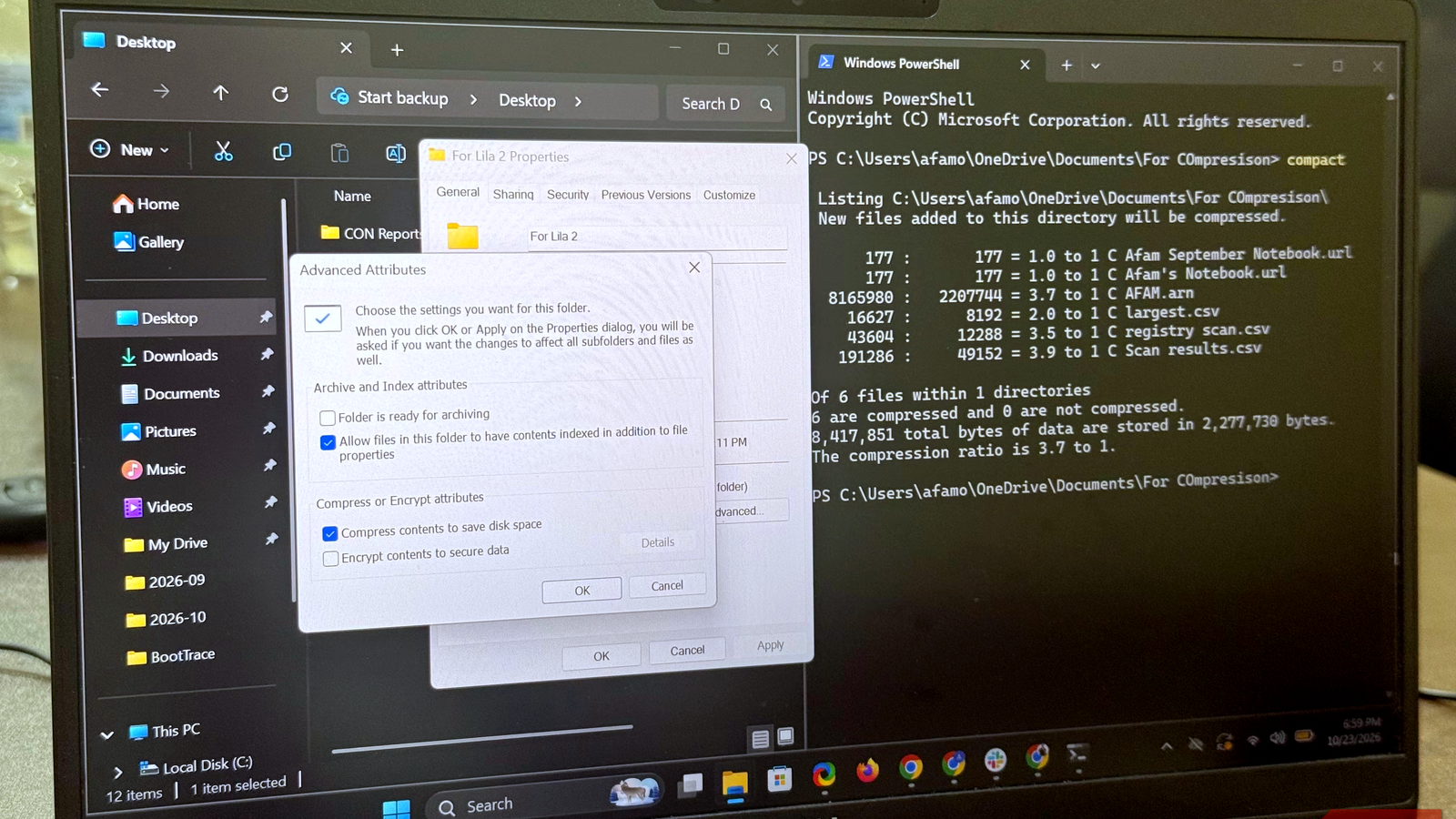
After compression, you can find out which files actually shrank by running the compact command from that folder (right-click the folder, click Open in Terminal, and run compact).
If you compress files, you may be worried about speed, since every time a file is read, Windows has to decompress the data. On my modest Dell Latitude with an SSD and 8GB of RAM, I didn’t notice any difference. Maybe there’s a speed difference that comes down to milliseconds, but in everyday use I couldn’t feel it.
The sequel Windows never advertised
Four stronger options have been in the command line since Windows 10
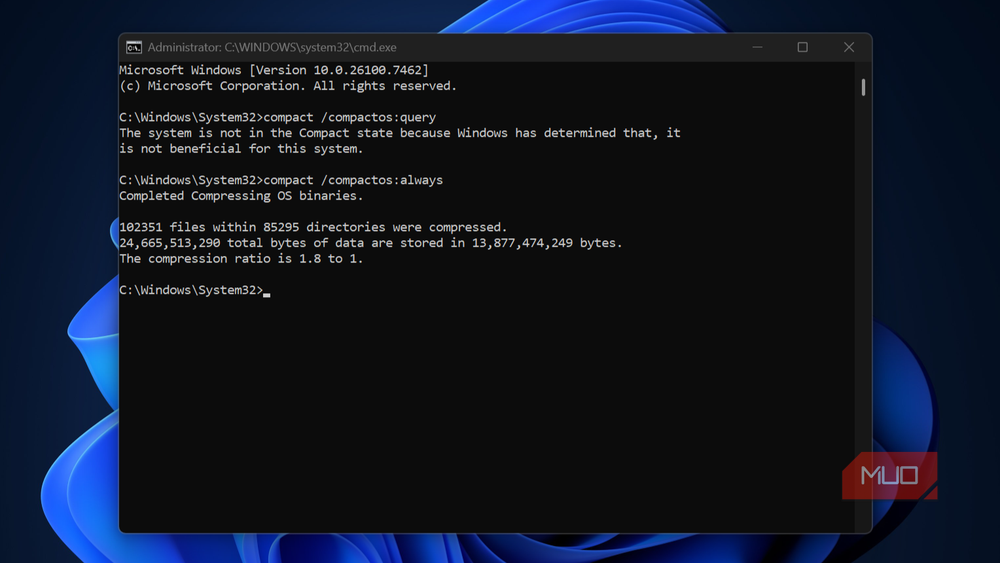
The compression checkbox uses that old LZNT1 method. Windows 10 introduced a different method for compressing executable files, which you access through compact.exe, a built-in command-line tool.
Using its /exe switch, you can access four algorithms: XPRESS4K, XPRESS8K, XPRESS16K, and LZX. XPRESS4K is the default if you don’t specify an algorithm, and it’s the fastest, while LZX produces the smallest results of the four.
This mode is specifically designed for the kind of files that don’t often change but are read frequently; older games and software are good candidates. Run the command below to try it on a game folder:
compact /c /s:"D:\Games\OldGame" /exe:lzxWith this command, you target the specified folder along with its subfolders. You can reverse it with /u and by specifying /exe with the same algorithm. For instance, to undo LZX compression on that same folder and its subfolders, run:
compact /u /s:"D:\Games\OldGame" /exe:lzxThe command-line version is the same feature as the Compress contents to save disk space checkbox, but with a newer engine.
Small here, full size everywhere else
NTFS compression doesn’t work on FAT32 and exFAT. A compressed file copied to a FAT32 or exFAT USB stick, sent as an email attachment, or transferred over the network will be uncompressed and sent at full size. Copying it between NTFS drives applies the destination folder’s setting, while moving it within the same drive keeps the file’s own.
From now on, I’ll compress only large folders I rarely open, and only on drives running short of space.
