

If your PC feels slow and you’re stuck with a puny 250GB NVMe system drive, a system cleaner can help you clean up some junk files and free up storage. If you don’t know where to look, you’ll also need a disk analyzer like TreeSize to find the large files you can delete. And keeping tabs on your startup apps can help your PC boot faster, so you’ll need another app to manage startup apps that are not listed in the Windows Task Manager.
Kudu is a free, open-source tool that can replace all three. It bundles system cleanup tools, a storage manager, and a startup manager, plus an uninstaller and a software updater that keeps your apps up to date from one central dashboard.
Kudu can clean up your PC
Clear out junk and trim your startup list
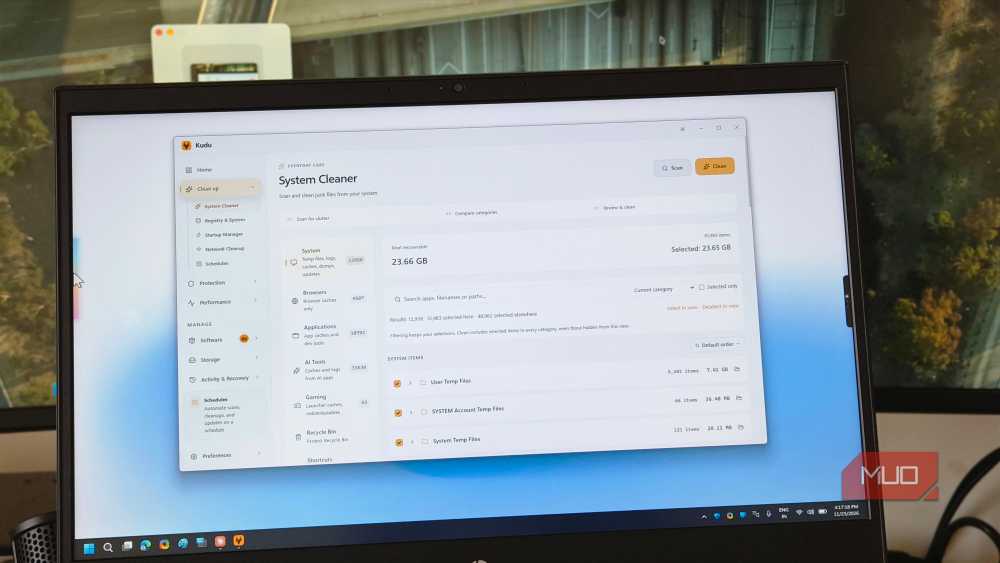
The Clean up tab in Kudu has multiple sub-sections: System Cleaner, Registry & System, Startup Manager, Network Cleanup, and Schedules. The desktop app is free and MIT-licensed, and the only paid part is an optional cloud service for monitoring several PCs remotely, which I don’t think I’ll ever need, but it’s there if you want.
However, steer clear of the Registry & System tab. Kudu backs up the registry before it cleans anything, but registry cleaners tend to cause more harm than good, and removing a few hundred leftover entries won’t make your PC any faster.
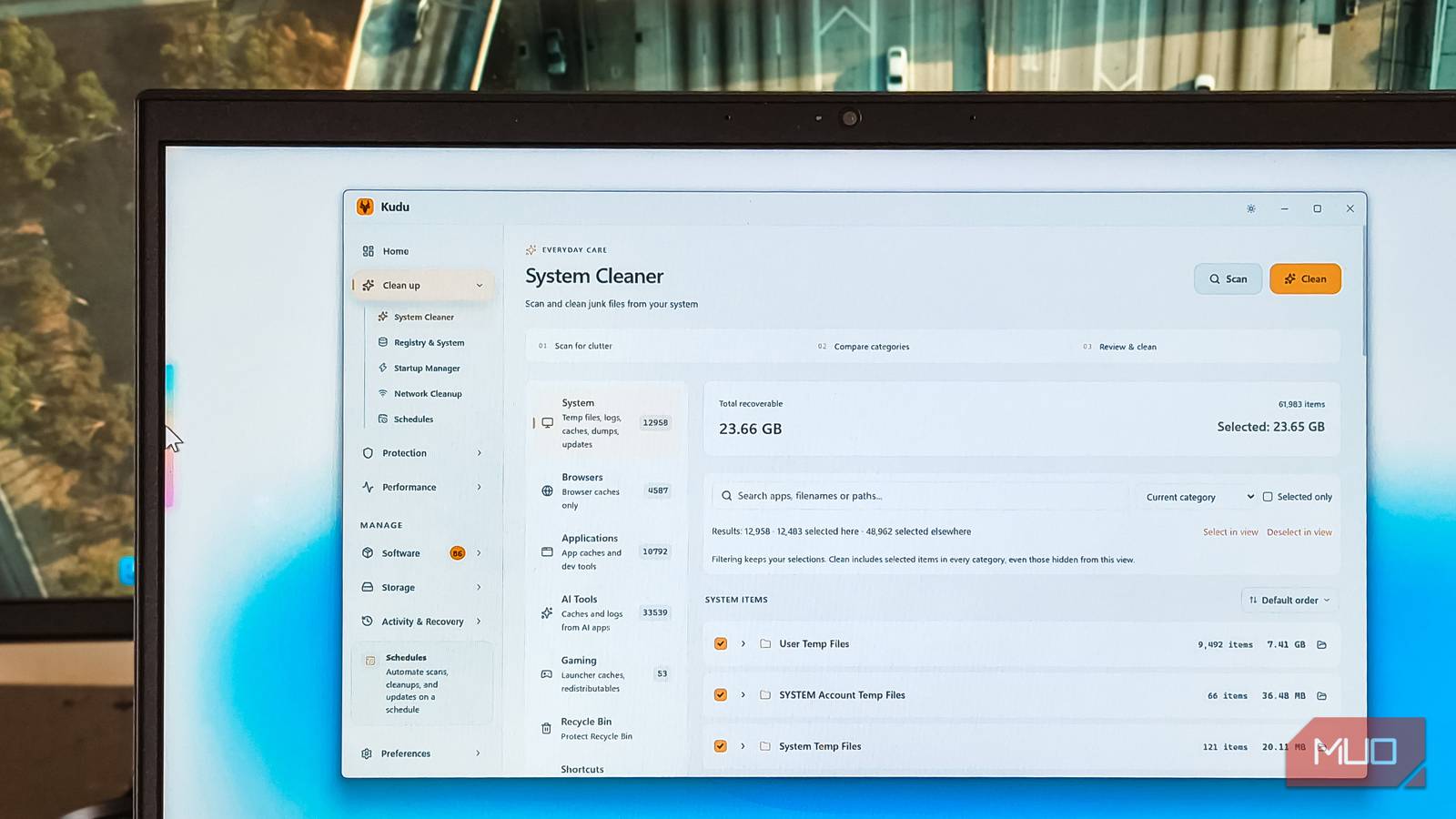
In the System Cleaner tab, you can choose what Kudu scans. One set of options goes after temp files, logs, caches, and updates, while the other targets apps, browsers, and the Recycle Bin. On my PC, the scan found 24 GB of temporary and other system files. The biggest chunk came from user temp files, and the rest was a mix of setup logs, Windows logs, and the Windows Update cache.
Go through the list once, and if everything looks fine to you, click Clean, accept the warning, and let it run. Getting 24GB back on a 250GB drive is a lot, and it brought my free space up to nearly 30GB. That helps more than it sounds. Windows needs free space for updates, temp files, and the page file, and a nearly full SSD has less room to work with, which is when things start to drag.
Next, open Startup Manager to see every app that launches as soon as your PC starts. Sort the list by impact, then use the toggle to turn off anything that isn’t important and doesn’t need to start on its own. It’s the same job Task Manager’s Startup apps tab does, but having it next to the cleaner means one less window to open. I’ve seen how removing a handful of startup apps can make a PC feel fast again, and chat apps, game launchers, and updaters can all wait until you open them.
The software manager
Update, uninstall, and debloat from one place
Kudu has a built-in software manager that can install updates for your apps and drivers, and uninstall apps too. Open the Software Updater tab, and it lists every update available from winget, Chocolatey, Scoop, and npm. You can click Update Selected to install everything you’ve picked, or choose to install only major updates or only patches.
If you use UniGetUI as a package manager, Kudu might replace it. For keeping apps up to date, Kudu covers the basics. What it can’t do is export your installed apps as a package bundle, so if you rely on that to set up a new PC, keep UniGetUI around.
The Driver Manager tab lists the driver updates available for your PC’s hardware. That said, for graphics drivers, the GPU maker’s own app is still the safer bet. Program Uninstaller lets you bulk uninstall apps, which beats removing them one at a time from Settings. Debloater removes the apps that came preinstalled on your PC, like OEM utilities and built-in Windows apps you never asked for.
Finally, Context Menu Cleaner does what the name suggests. It removes items you don’t want in File Explorer’s right-click menu. The catch is that it only works on the classic context menu, the one that appears when you click Show more options, so the newer Windows 11 menu stays as it is.
The disk analyzer
Find out what’s eating your storage
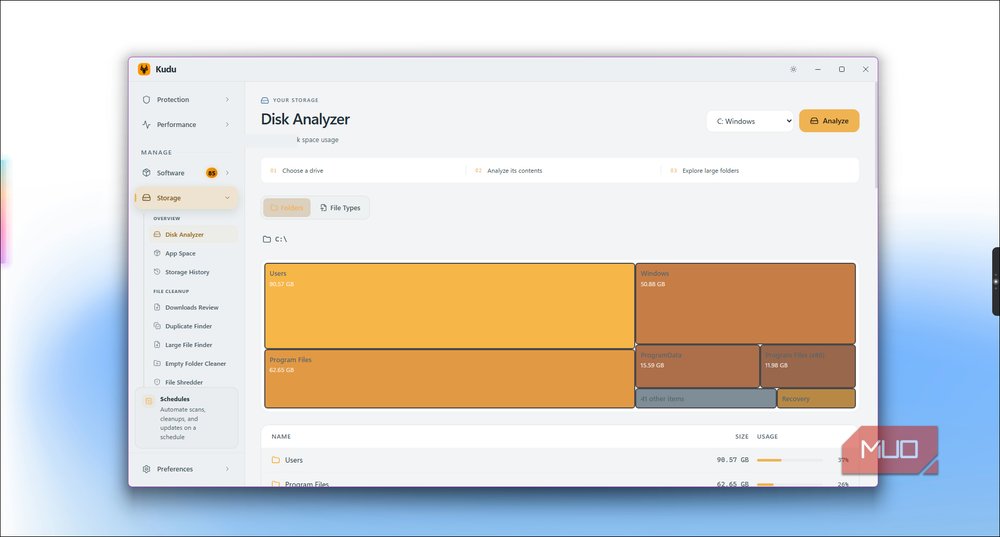
Kudu comes with a disk analyzer that scans the drives on your PC to find what’s hogging the most storage. In the Disk Analyzer tab, choose the drive you want to scan and click Analyze. The scan takes a few minutes to finish, which is slower than WizTree, the tool I used to find and clean 200GB of hidden junk on my PC, but fast enough for an occasional check.
Once it’s done, you get a treemap that shows where your storage is going. Click the nested rectangles to drill into the folders holding the most data. You can’t delete anything from here, though, so you’ll have to open the folder and remove files by hand.
The App Space tab tells you which apps take up the most storage. If there’s something you haven’t opened in months that’s sitting on a ton of space, this is a quick way to find it and remove it.
Storage History is the tool I didn’t expect to find in a cleaner. It lets you take a snapshot of a folder, then compare it with another snapshot later to see what grew, by how much, and when. So if you’ve ever wondered why your drive suddenly lost 30 GB, this can help you find the leak. To track changes, Kudu only saves metadata like folder names and sizes and doesn’t read the contents of your files or upload anything.
The Storage section also has a few extra cleanup tools that let you review old downloads, find duplicate and large files, an empty folder cleaner, and a file shredder.
On an SSD, overwriting a file doesn’t guarantee the old data is gone, because the drive decides where data physically lands. If you need to protect sensitive files on an SSD, full-disk encryption is the more reliable route.
An all-in-one system maintenance utility
Most system cleaners are snake oil if you’re hoping they’ll optimize your PC. They don’t, and a modern PC with an SSD doesn’t need manual tuning anyway. But if you have a puny system drive, a cleaner can dig up hidden junk that runs into tens of gigabytes, and getting that space back does help. If you can ignore the registry cleanup (and you should), Kudu gives you an all-in-one cleanup setup that worked well enough on its first run.
It also has a Windows Repair section that runs Windows’ own command-line tools, including DISM RestoreHealth, SFC /scannow, and CHKDSK /scan to check your drive for errors. These are safe to run because they’re built into Windows, and Kudu just saves you from typing them into an admin Terminal. If something does go wrong, the Recovery section is meant to undo Kudu’s changes, though I haven’t needed it, so I can’t vouch for how well it works.
