

If your Wi-Fi feels slower than you’d like even though your router is fine and your ISP says it’s not experiencing any outages, you might want to restart everything, and then run a speed test. If the numbers are still pretty disappointing, the fault could lie with Windows.
Every modern Windows laptop has a set of power-saving features that help reduce how hard your Wi-Fi adapter works. On more modern laptops sold in the last few years, these behaviors are bundled into a power management system called Modern Standby (S0), and they don’t always work as expected. Instead of limiting your Wi-Fi performance when your laptop is sleeping, like it should, these power-saving behaviors can bleed into your active use, costing you the speed you’re paying that ISP for.
The good news is that you can adjust this setting, and you don’t even have to edit the registry or rely on third-party software.
The S in S0 stands for Sleep State 0, part of the ACPI (Advanced Configuration and Power Interface) power state numbering system that Windows and hardware vendors use to define how much of the system is active or powered down. S3 is the classic sleep state that older laptops drop into directly. S0 is a newer state that lets a machine idle on low power while staying partially active.
What Modern Standby has to do with your Wi-Fi
S0 keeps your adapter active — but at a cost

Older Windows laptops used a sleep state called S3 which would power down the Wi-Fi adapter almost completely when the lid closed. Modern Standby (S0 Low Power Idle) works differently. Instead of fully suspending the system, it keeps your laptop in a low-power version of what it’s like with the power completely on. This works like how your smartphone stays partially awake to get notifications and sync data in the background.
To keep the power draw minimal when in this S0 state, Windows enables something called Wi-Fi power save mode on your adapter. In this mode, the adapter reduces its radio activity and accepts higher latency in exchange for the lower power consumption. That’s a pretty decent trade-off when your screen is off and you’re not using your laptop.
The problem is that on Modern Standby systems, these power-saving features can remain or even re-engage during active use, especially if you’re running on battery, using a Balanced power plan, or when your system is waking from sleep. The result is a slower Wi-Fi connection than it should be.
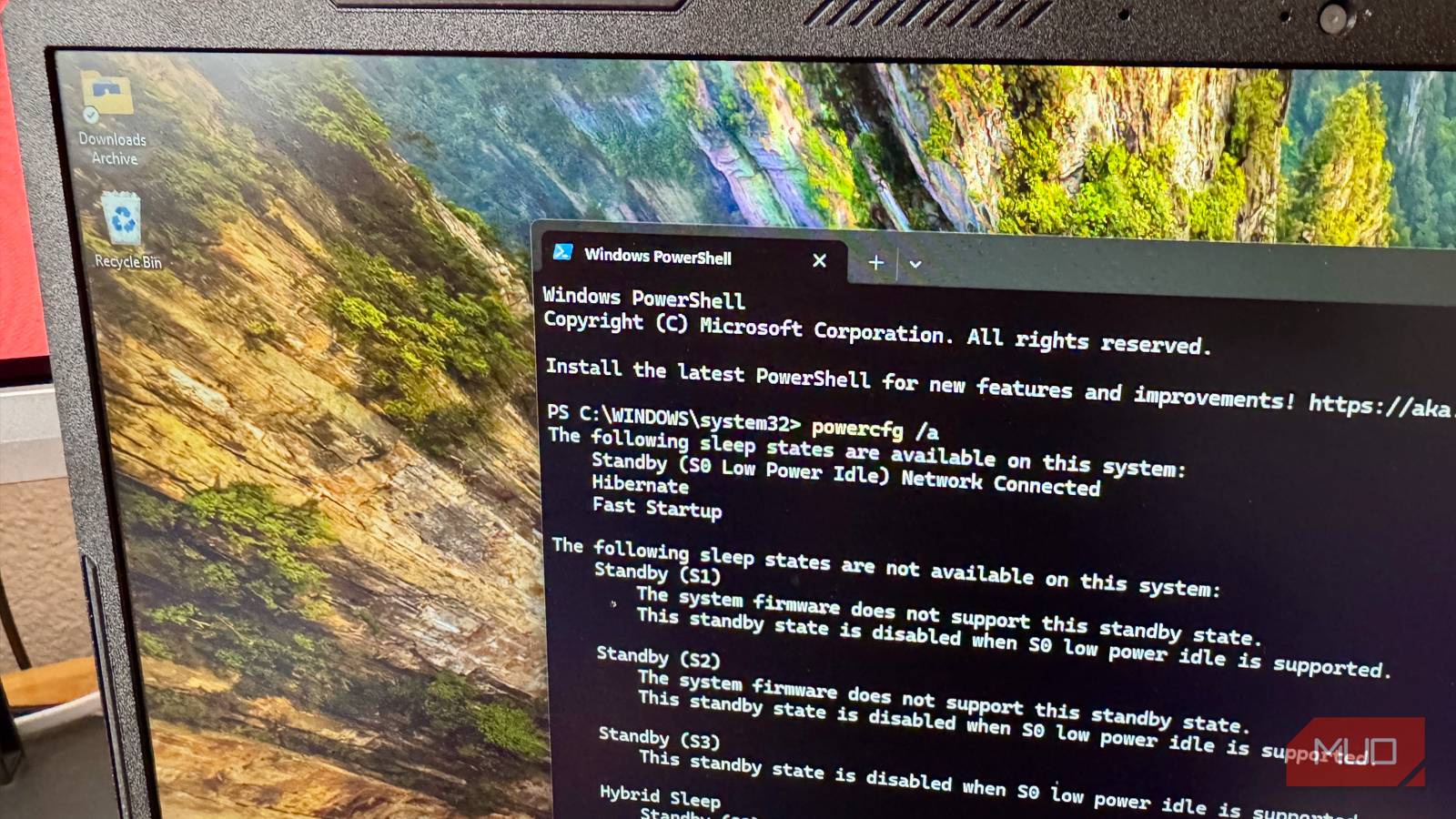
To find out if your system uses Modern Standby, open PowerShell and run:
powercfg /aIf the output has Standby (S0 Low Power Idle) Network Connected as a supported state, then you’re using Modern Standby, and the fix below should work for you.
Before you do anything, though, run a speedtest either at fast.com or speedtest.net and note your current Wi-Fi speeds. Try the test on battery and when plugged in for a full picture. These numbers are the baseline you’ll use to see if the fix has any effect.
Disable power saving mode in your adapter’s advanced settings
Find the right property for your adapter
Your Wi-Fi adapter has its own internal power-saving controls, and you can find them in its advanced properties. This is where the actual behavior is configured, and on battery power, it’s often set to prioritize power saving over throughput with no visible sign it’s doing so.
- Press Win + X and select Device Manager
- Expand Network adapters
- Right-click your Wi-Fi adapter and select Properties
- Click the Advanced tab
-
Scroll through the Property list and look for the relevant entry for your adapter:
- Intel adapters — look for MIMO Power Save Mode. If the value is set to Auto SMPS, the adapter is dynamically reducing its active spatial streams to save power. Change it to No SMPS
- Realtek and MediaTek adapters — look for Power Saving Mode or 802.11 Power Saving. Set the value to Disabled or Maximum Performance
- Click OK
Now Windows won’t restrict power for your Wi-Fi adapter when your PC goes idle. If your Wi-Fi has ever dropped immediately after waking from sleep, this setting is likely the reason.
Before applying the fix, my PC tested at 600 Mbps plugged in and 260 Mbps unplugged. After changing MIMO Power Save Mode to No SMPS, those numbers jumped to 970 Mbps and 430 Mbps respectively.
Laptop users should note this will increase the adapter’s power draw on battery.
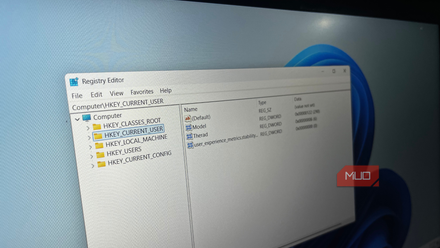
This registry tweak stops Windows from throttling your network traffic
This tweak doesn’t boost your network, it removes the leash.
Who should apply this fix?
If you’re on a desktop, apply this fix without hesitation. There’s no battery to protect and any power-saving behaviors on your Wi-Fi adapter aren’t useful.
On a laptop, it depends on your usage. Disabling MIMO Power Save Mode will increase your adapter’s power draw, which means a modest hit to battery life when you’re unplugged. Whether that trade-off is worth it depends on how much time you spend on battery and how much your current speeds bother you. If you’re mostly at a desk, apply it and don’t look back. If you’re frequently mobile, you may want to leave it and accept the throttling as the cost of longer battery life.
Either way, run your speed test again once you’ve made your choice. If your adapter was sitting in a power-saving mode like Auto SMPS, the difference when plugged in should be noticeable.
