

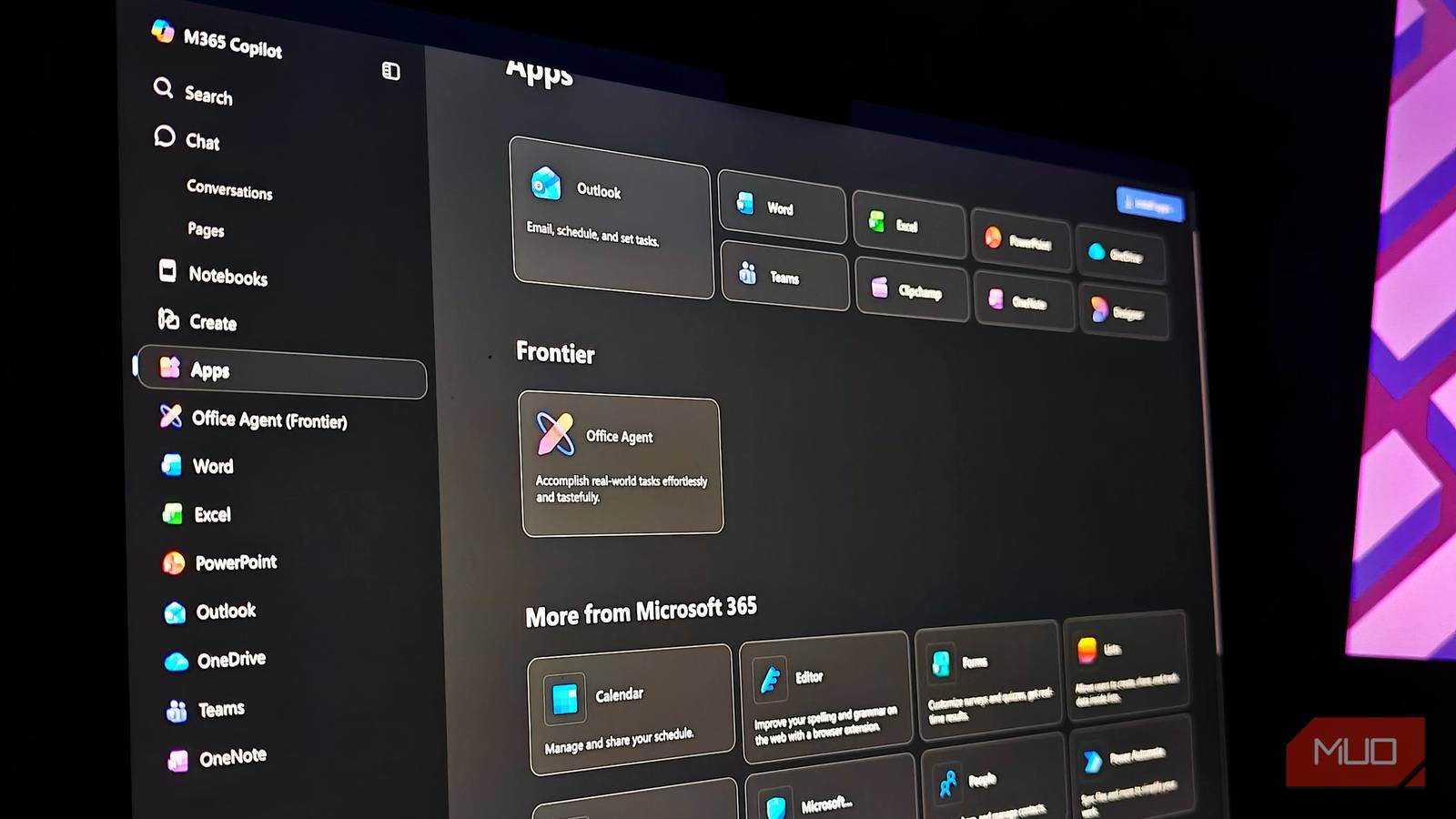
Like many of you, I have a personal favorite AI tool that I often use to help me when I am stuck. When Microsoft Copilot first started appearing almost everywhere on my Windows laptop, be it the taskbar or the Start menu, I used to dismiss it outright. I either had my daily workflow figured out or my favorite AI tool ready to deploy. The last thing I wanted was another clunky virtual assistant getting in my way.
But one day, when I had a mountain load of work, I decided to give the little colorful icon a try, and things changed. I realized that Copilot isn’t as bad as I thought it was. If you are also like me, avoiding Microsoft’s AI companion, then in this guide, I’ve compiled a list of features that you will find useful and probably lure you into using Copilot.

You should seriously give Microsoft Copilot a chance
Microsoft forced this app on me, and I liked it.
Copilot is your partner
It attends meetings on your behalf until the time you come back
In most AI chatbots, you have to take your things to them. Meaning, there is a lot of copying and pasting involved. But with Copilot, it lives exactly where you already work. You don’t just get a simple robotic answer to a question; you get the assistant to assess the work, analyze the files that are already open, and generate complex formatting on the fly. Copilot is an AI tool that understands the context of your current task without needing a massive explanation.
Copilot also comes with features that actually matter. For instance, imagine you signed in to a Microsoft Teams meeting 15 minutes late. Now, thanks to Copilot, instead of asking everyone what you missed and dealing with ignorance, you can simply ask Copilot. It acts like your personal meeting assistant.
Just ask, “What did I miss so far?” and it will quietly read the meeting’s live transcript and give you a summary of it in a bulleted list. You can go a step further and even ask if your name was even mentioned in the 15 minutes you missed or not.
Turns wall of text into visual slides
It builds your presentation from scratch
Building a presentation from scratch is not something we love to do. I was working in a senior position in London, and trust me, presentations are not a fun thing. Copilot is an absolute lifesaver if you have a lengthy Word document.
All you need to do is upload your document to OneDrive, open PowerPoint, and simply ask Copilot AI to “Create a presentation from (file name).” Copilot will do everything from scratch and give you a perfect presentation. Instead of lazily copying and pasting text from your document, the assistant does all the work.
It summarizes the content, designs the slide layout, adds relevant images, and even writes out speaker notes for you, so that you are all set when you go up to present.
No more Excel formula nightmare
It acts like your personal math expert and analyst
Let’s be honest, figuring out the right Excel formula for your data can feel like trying to learn a foreign language. If you have a spreadsheet full of data and you want to extract insights from it, but you have no idea how, then let Copilot take the driver’s seat.
Microsoft Copilot comes with a handy “Create formulas” prompt. When you use this prompt, it looks at your data, analyzes it, and automatically suggests formulas that would be a good fit for your data. Instead of hunting for formulas through menus, all you have to do is type a natural, plain English command, like “Calculate the year-over-year growth for revenue in column D,” and Copilot does the heavy lifting.
The best part is that it even explains how the formula works, so you are not only using the formula but also learning as you go. Beyond asking for formulas, you can also use Copilot to help clean up messy and duplicated data, etc.

Don’t Miss These 8 Underrated Microsoft Copilot Features
Don’t let these features slip through the net; get more out of Copliot by using its most underrated tools.
Makes you sound professional
It drafts the perfect reply, in the best tone for that email
If you receive a ton of emails every day, then you probably drown yourself in replying to most of them. Your emails could be work-related, personal, or promotional inquiries. To save time, you started letting Copilot draft your replies and find that it is actually doing a great job. Copilot understands the tone and gives you high-quality output.
If you use Outlook, then you can make use of the Copilot feature called Coaching by Copilot. There are so many times that while writing an email, you have to rewrite the same sentence five times just to ensure that it sounds perfect.
Copilot reads your email draft and offers highly actionable advice focused on three areas: tone, reader sentiment, and clarity. It highlights the exact words that need to be replaced so that your message lands perfectly. If a sentence is not what you like, it suggests alternatives to use. Basically, you get an effective editor reviewing your drafts before you hit the send button.
Simplify your reading
It digests complex files in seconds, so that you don’t have to
Whether you are researching a topic or browsing your favorite website for the latest updates, when you have Copilot by your side, you don’t have to read the whole thing to find out if it is actually useful or not. Because Copilot is built right inside the Microsoft Edge browser.
I was a user of the Google Chrome browser, like billions across the globe, but shifted to Microsoft Edge some time ago. Google Chrome was too slow, and it turned on my laptop’s fan like a helicopter, which was the reason I had to shift to a different browser. And Microsoft Edge was at my disposal.
I check out tech websites every day to keep myself updated. Whenever I come across a lengthy post, I summon Copilot and ask it to summarize the article for me. In a few seconds, I have a summary of the web page. Additionally, I can ask specific questions about the article, all without opening another tab.
It works with PDFs as well. You can drop a PDF into Copilot and ask questions about the document to summarize the conclusion, locate specific data points, etc.
Stop ignoring the Copilot button
Once you realize that Copilot isn’t just a gimmick, it quickly becomes an essential part of your daily routine. There are so many different ways you can put Copilot to work so that you can focus on the task that actually requires your attention. But Copilot may not fit in everybody’s workflow, and if that is the case, then you also have the option to completely disable it. This way, Copilot won’t bother you, and in the process, you also make your taskbar lighter and clutter-free.
