

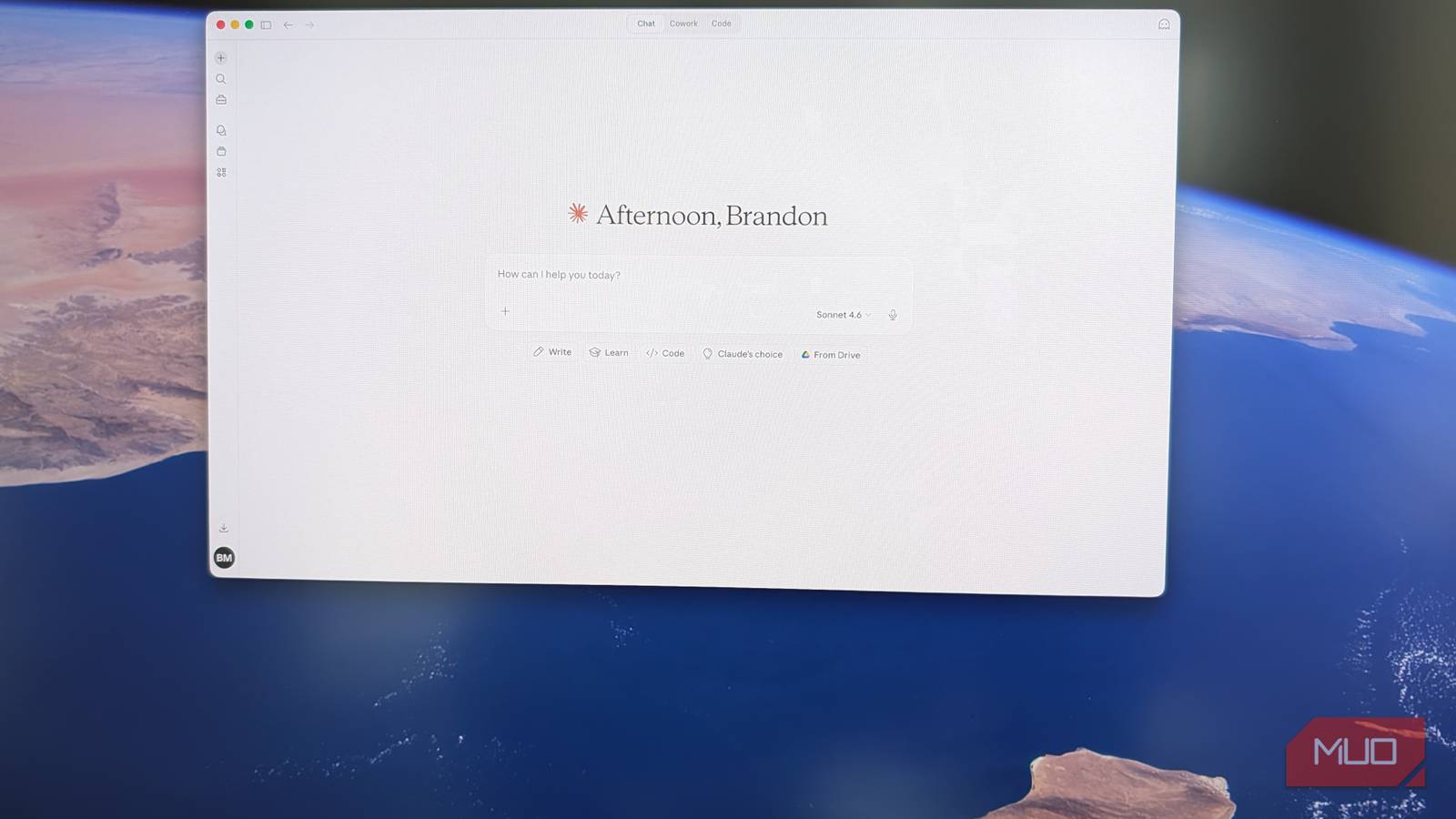
Like many, I’ve been using ChatGPT as my AI of choice for quite a while (even though some are turning away recently. But the truth is that for most things, Claude is better (like for doing real work) and in some cases save you a ton of time by helping you with work. It’s more perceptive (and can brilliantly ask you clarifying questions in order to form a deep understanding), it has vastly better coding skills than ChatGPT, and it has more capability to do work on your behalf through agentic tools like Cowork which can literally use your computer on your behalf.
But how do you move from ChatGPT to Claude without losing the history you’ve had with GPT? I was worried about that, since I’ve spent over a year working with and inputting info into ChatGPT that I didn’t want to lose. The truth is that there is presently no perfect migration tool to go from ChatGPT to Claude, but there are several methods to transition to Claude so that you can give Claude a full understanding of who you are, what you need, while providing plenty of personal context to maximize Claude’s ability to help you get stuff done.
How to transfer your ChatGPT history into Claude
It can be done, but with one major caveat

When you transfer your history from GPT to Claude, it’s not a migration — it’s more of a one-time consultation that is ephemeral, meaning that chat history will not survive beyond a single chat. There are several other things you can do to make Claude better understand you, which I’ll cover in this article.
If you want to export your ChatGPT into Claude, here’s what to do:
- Go to your ChatGPT account. Click on your profile in the bottom left corner
- Click Setting > Data Controls > Export Data
- Confirm export, and wait 24 hours for the data to be emailed to you.
To import into Claude, start a new chat. Then prompt it “help me import my ChatGPT history into Claude” and it will proceed to explain how to import the exported ChatGPT data. If it’s small enough, Claude will read your entire history and provide you a summary. If it’s lengthy, Claude might prompt you to compress the chat (in my case, when I first tried to import my ChatGPT history, Claude said it was too big but proceeded to write a JSON script that it instructed me to use in terminal in order to compress my chat history). Once imported, within the same chat you can ask questions about your imported ChatGPT history, or get Claude’s summary that you can save to a project as custom instructions.

- Developer
-
Anthropic PBC
- Price model
-
Free, subscription available
Export your custom instructions into Claude
And your preferences

In ChatGPT, under Settings > Personalization > Custom Instructions, you might have set up Custom Instructions, or you might have filled out the About You section to give ChatGPT more context about you. You can copy this same info directly into Claude by going to Settings > General > Personal Preferences. In my case, I copied the following custom instruction from ChatGPT to Claude because I really like how it handles my questions: “Be my ruthless mentor. If my ideas are trash, tell me why. Stress test everything.”
Seed Claude’s memory
Be explicit in telling Claude about you

The most simple and straight-forward way to teach Claude about you is to have a conversation with it where you tell it about yourself and what you’re trying to do: how you communicate, what you’re working on, what you need help with. Even if you don’t know specifically what you need help with, you can have Claude figure that out by saying something like “come up with ideas on how you can help me. I’m working on [a project] and am having [these challenges].” Be as specific as possible, and you’ll be amazed and how deeply Claude can understand your situation and even ask clarifying questions in order for it to figure out how it can help you even if you have no idea where to begin.
Another way to seed Claude’s memory is to go back in your ChatGPT history and find threads where you gave ChatGPT a deep awareness of your situation or challenge. You can do this by asking ChatGPT “make a summary of everything I told you and everything you understand about [a specific matter]” then take the resulting output and paste it into Claude.
Set up projects in Claude
And recreate specific use-cases from ChatGPT

Claude’s project system for ongoing work is really powerful. Files, instructions, and context are all kept in a cumulative file within Projects on Claude and will be remembered on an ongoing basis. So if you were using ChatGPT to give you ideas for your blog, and you gave it a leaderboard of top-performing pieces plus instructions on how you want it to come up with content ideas, you can bring this into Claude by making a new project called “blog ideas” where you upload your article leaderboard, then import custom instructions via the memory/instructions/files panel located on the right side of any project within Claude.

6 Reasons I Use Claude Instead of ChatGPT
ChatGPT is great; don’t get me wrong. But Claude is so much better.
Going from ChatGPT to Claude isn’t perfect
But you can get most of the way there

It’s still a bit early in the world of AI, so there are no seamless ways to transfer from one AI to another. But with Claude’s projects, custom instructions, and conversation ingesting features (where you can export your ChatGPT conversations and bring them into Claude, though in a non-persistent way) you can get “most of the way” there to getting Claude to understand you to the same extent as ChatGPT.
