

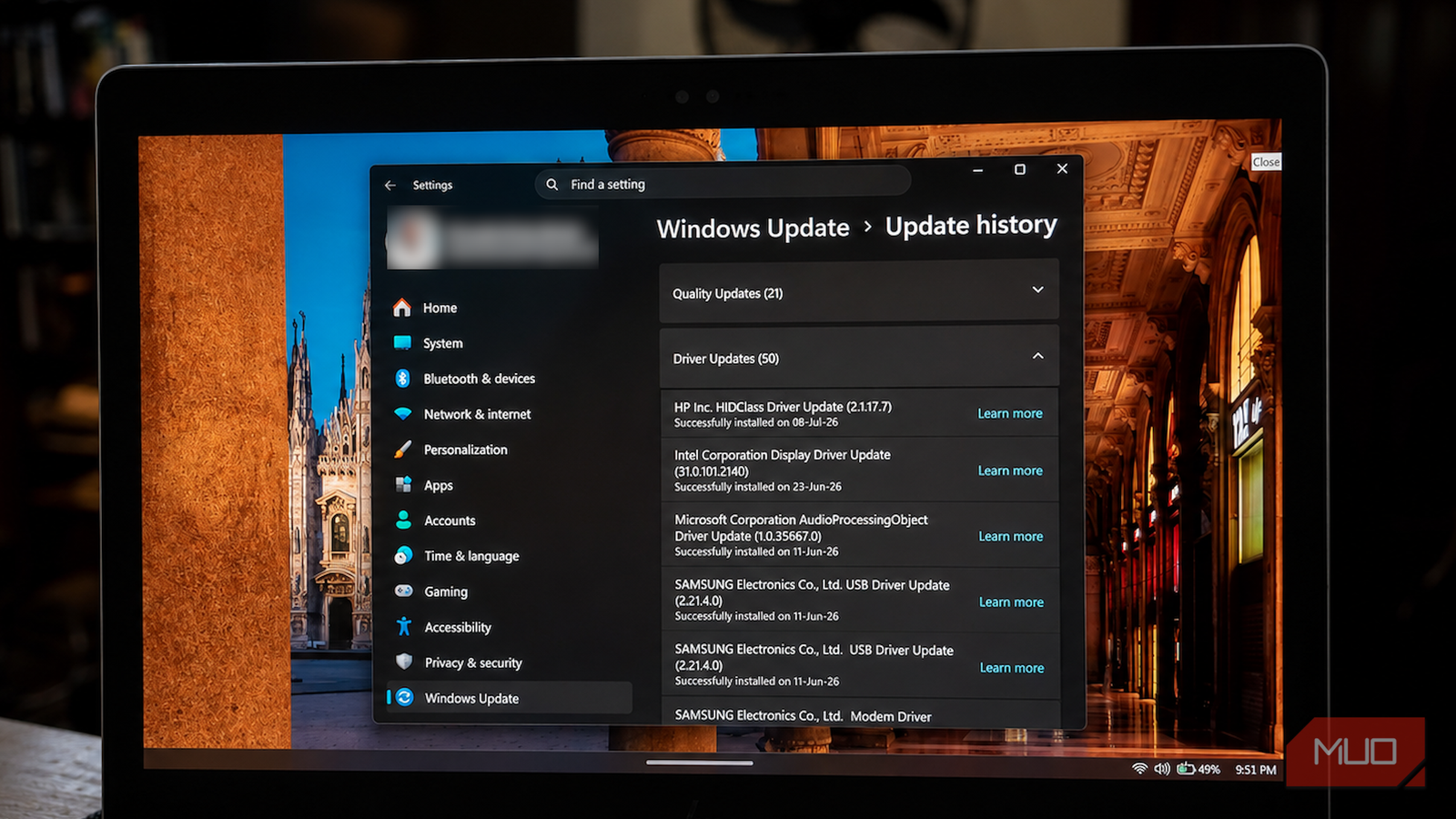
The default Settings app in Windows 11 is functional, but it’s quite limited compared to something like the classic Control Panel. It certainly gets the job done for most Windows users, including me. However, with Microsoft’s push for a more integrated, online ecosystem, the Settings app has become quite closed off. In fact, a good chunk of the administrative options that used to be part of the User settings are now locked off unless you’re connected to the internet.
However, I was pleasantly surprised to discover a hidden feature on Windows that’s basically everything I ever wanted the default Settings app to be. I’m talking about Windows’ God Mode folder. It’s essentially a shortcut that gives you access to most administrative tools, restore point options, and a ton of other settings within a single window.
The Settings app on Windows 11 is restricted in the worst ways possible
Using the default Settings app shouldn’t come with any restrictions, period

Starting with Windows 8, Microsoft began pushing for a more always-online operating system. However, it only became as egregious as it currently is with the later generations of Windows 10 and now, Windows 11. And the Settings app is the perfect example of this sudden pivot. Now, don’t get me wrong, the always-online ecosystem has its merits. Getting instant access to my saved documents, files, and apps on a new Windows installation or VM (via OneDrive) is a boon for tinkerers like me.
However, it also means having to sacrifice the customizability and openness of the operating system. For instance, take the User settings within the Settings app on Windows 11 (Account). More than half the options present under the Accounts tab are only accessible if you’re connected to the internet.
Furthermore, the Settings app itself serves as a glorified advertisement for Microsoft’s own services. Just open the Accounts tab, and you’re immediately greeted with a page full of Office 365 ads. This also extends to the Settings app’s homepage as well, where the first few options are for OneDrive and Office 365 subscription tiers.
There are also weird restrictions, like the lackluster Troubleshooter option. And don’t get me started on the jumbled web of options that you have to navigate within the Settings app to enable or disable simple things like the pinned apps and notification tray. This is precisely where the God Mode folder comes to the rescue.
What is the God Mode folder in Windows 11?
A simple shortcut that’s the answer to the lackluster Settings app on Windows 11

The God Mode folder isn’t going to give you access to anything special that you can’t already access via a combination of the default Settings app and Control Panel. However, what it does differently (and better) is that it presents all available settings options within a single scrollable format. You don’t have to go digging through multiple tabs and subcategories to track down that one option that regulates HDR, for instance.
Also, it’s completely ad-free, which is definitely a plus in my books. Under the God Mode folder, you will get the following options:
- Administrative Tools
- AutoPlay
- Backup and Restore
- Color Management
- Credential Manager
- Date and Time
- Devices and Printers
- Ease of Access Center
- File Explorer Options
- File History
- Fonts
- Indexing Options
- Infrared
- Internet Options
- Keyboard
- Mouse
- Network and Sharing Center
- Pen and Touch
- Phone and Modem
- Power Options
- Programs and Features
- Region
- RemoteApp and Desktop Connections
- Security and Maintenance
- Sound
- Speech Recognition
- Storage Spaces
- Sync Center
- System
- Tablet PC Settings
- Taskbar and Navigation
- Troubleshooting
- User Accounts
- Windows Defender Firewall
- Windows Mobility Center
- Work Folders
It basically gives you access to everything you might want to tweak on Windows, in a single, easy-to-navigate list. You can also rename the shortcut to whatever you want. On my work PC, I’ve named this shortcut “Settings,” and also pinned it to the taskbar, replacing the default Settings app.
The only somewhat tricky part of using the God Mode folder is, well, enabling it in the first place.
How to enable the God Mode folder in Windows 11?
A simple desktop shortcut is all you need to create the God Mode folder
Enabling the God Mode folder on Windows 11 is as easy as creating a desktop shortcut, literally. You will need to make sure you’re logged in to an account that has administrative privileges for the folder to work, and follow these steps:
Head to the desktop and right-click on an empty area.
- From the context menu, select New > Folder. Remember, you have to select a Folder and not a File or Shortcut.
- Once you have created the new folder, right-click on it and select Rename.
- Alternatively, you can also click on Show more options and then select Rename from the legacy context menu.
- Either way, you want to rename the folder to the following string of characters:
GodMode.{ED7BA470-8E54-465E-825C-99712043E01C}Once you’ve renamed the folder, refresh the desktop. You will see that the icon of the folder will change to that of the Control Panel. Voilà! You now have access to the God Mode settings. Also, if you don’t want the shortcut to be titled “GodMode,” you can rename it very easily:
- Create a new Folder on the desktop.
- Rename the folder by right-clicking on it.
- Now, instead of keeping the “GodMode” part in the string, you can enter any name/title you want for the folder. For instance, in my case, I kept it as “Settings.{ED7BA470-8E54-465E-825C-99712043E01C}.”
- Once you’ve renamed it, refresh the desktop, and you’ll have your own custom God Mode folder.
Make sure you’re entering something in the “name” section of the string. Although you cannot see the folder’s name when it’s saved on the desktop, you won’t be able to create the God Mode shortcut without specifying a name for it. I personally recommend just using the default string, especially if you don’t intend to pin the folder to the Start menu or the taskbar.
I should mention that if you keep the folder on your desktop, it won’t show any title/name under it (like most icons and shortcuts do). However, pinning the folder to the taskbar does show its name if you hover over it.
Windows 11’s Settings app isn’t a replacement for the Control Panel

As I was trying out the God Mode folder, I couldn’t shake the feeling that it was almost like the Control Panel from Windows XP and 7. It got me thinking about how aggressive Microsoft has been in trying to push for the Settings app as the new de facto Control Panel for Windows 11, despite it being an inferior option in every regard. Yes, navigating the Control Panel might not be the most intuitive experience, but it’s still a part of the Windows identity.
Also, in practice, most system-level functions still require you to use the Control Panel over the Settings app anyway. For instance, on my Windows 11 laptop, the power and lid settings never work as I want unless I make the changes via the Control Panel. And the same goes for app management.
Uninstalling and managing apps and software is much, much easier with the Control Panel than with the Settings app’s Apps settings. While the Settings app on Windows 11 certainly has its uses, for me, it’s never going to replace the Control Panel.
