

Group chats are fun, but they can also be overwhelming. The bigger the conversation, the more quickly things can get out of hand. The natural response to a rowdy group chat is to snooze it, or flip on Do Not Disturb for your entire phone. But this solution introduces a problem of its own — how long will it take you to catch up on everything you missed? Luckily, there’s a hidden feature in Google Messages that could be the best of both worlds.
Bubbles are starting to become well known because of the role they play in Android 17. Google’s latest update allows Android users to turn any app into a bubble that they can access in floating-window form, atop of their other apps. Before there were app bubbles, there were chat bubbles. They’re still around, and turning a hectic group chat into a chat bubble may be the key to keeping tabs on your friends and family without getting distracted.
Chat bubbles streamline group chats
Pick which conversations turn into bubbles
When a text message comes through on an Android phone, there are a few different ways you can interact with it. Opening Google Messages lets you view the full conversation and use all the app’s features, but it requires you to leave your current app. Replying from the notification panel is quicker, but you can only see the most recent messages and can’t use every Google Messages feature. Chat bubbles in Google Messages can be an ideal middle ground.
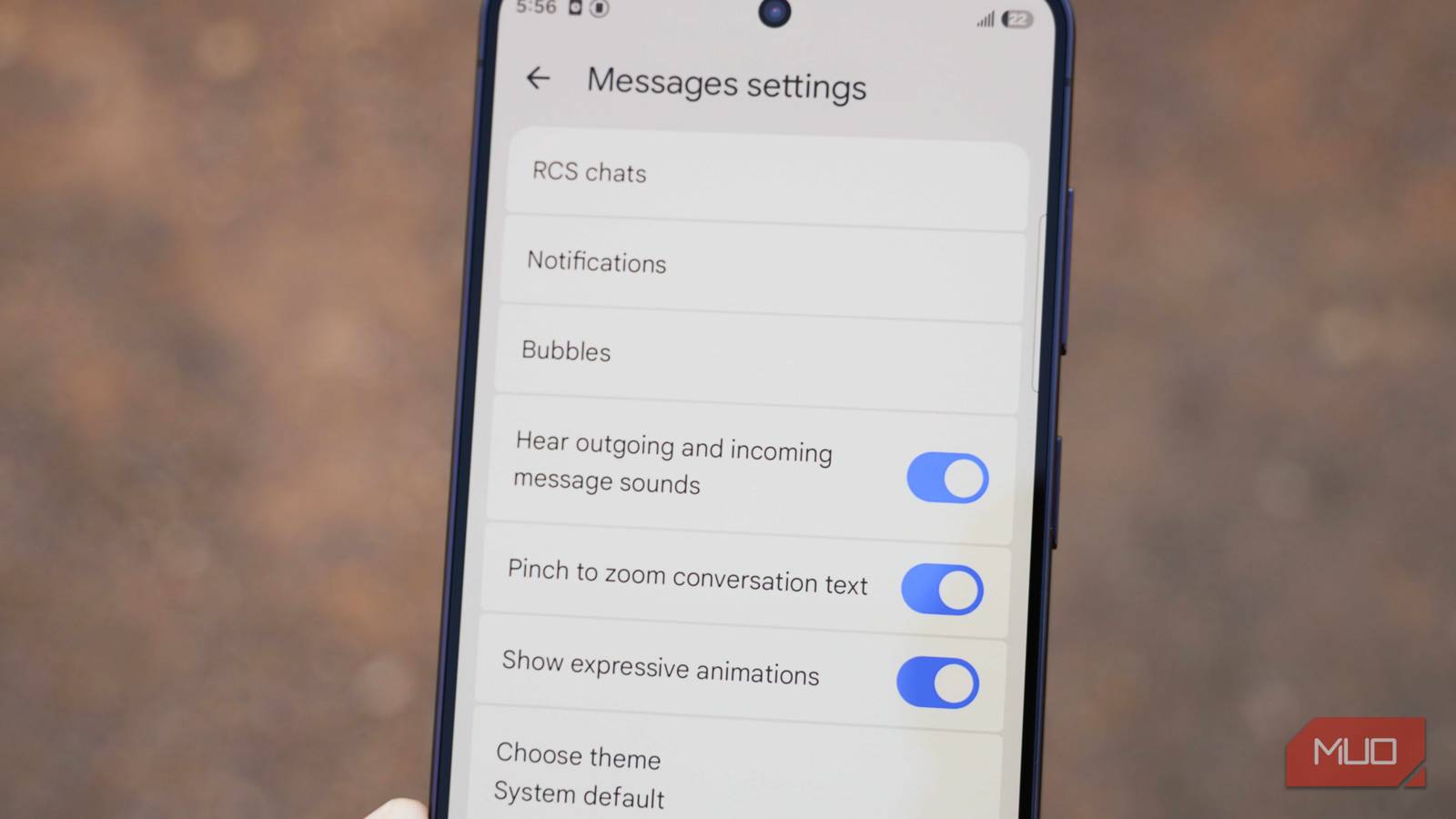
Bubbles don’t replace opening the Messages app or replying via the notification panel, but they do serve as an alternative. By opening the Google Messages app, tapping your profile picture, and navigating to Messages Settings → Bubbles, you can choose whether every conversation, or only the ones you select, appear as bubbles. Bubbles are simply small dots that display profile icons above whatever you’re viewing on your screen.
You can drag the profile icons around to access any area of your screen, and they’re relatively unobtrusive as a result. Tapping the bubble opens the conversation in windowed form, allowing you to reply and see the full chat history. You can access multiple conversations at once from the same bubble shortcut. Better yet, when a new text comes through, a preview appears above the bubble. This helps you decide whether it needs your attention, or if it’s safe to ignore.
Chat bubbles come in handy for all kinds of chats, but they’re especially useful for group chats. When a group chat gets going, keeping up with it feels impossible. Chat bubbles give you just enough information about what’s going on in the conversation without pulling you away from what’s important on your phone.
Silence group chats with bubbles
An easy shortcut to hitting the snooze button

Sometimes, even the chat bubbles become too much. When the profile icons start getting in the way or texts begin coming in too fast, it’s easy to silence it all. Touch and hold the bubbles to move them around your screen, or drag them to the X at the bottom of the screen to clear them. If you’ve set chat bubbles to only appear for conversations you’ve selected, you can stop a specific chat from transforming into a bubble.
To do this, open the bubble and select Settings → Manage → Don’t bubble conversation. You can always come back and enable chat bubbles for a particular conversation later. It’s nice that you can manage bubbles directly within their user interface, so you don’t have to open Google Messages or the Settings app to change your preference.

One of my favorite ways to use chat bubbles is to quickly silence problem group chats. When a conversation is flowing at a comfortable pace, you can use chat bubbles to read and reply to messages as they come in. If the group chat becomes a burden, you can hit the snooze chat button from within a chat bubble. This will silence notifications for that specific group chat for the amount of time you choose, giving yourself a break.
Usually, you’d have to open the Google Messages app or turn on Do Not Disturb for the entire system to get a reprieve. With chat bubbles, you can snooze a chat from anywhere.
What if I hate chat bubbles?
Don’t worry — there’s an easy way to turn them off

Chat bubbles aren’t for everyone. In fact, some Google Messages users despise them. Bubbles seemingly appear out of nowhere at times, and for new users, it’s unclear what they’re doing or how to disable them. The good news is that there is a way to disable them once and for all. In the Google Messages app, tap your profile picture and navigate to Messages Settings → Bubbles. Here, you’ll see three options: All, Selected only, and None.
Tap None to prevent Google Messages from turning conversations into chat bubbles. However, you can’t stop there. To completely eradicate chat bubbles from your device, you need to change a separate setting for notifications. This is the step most people miss, and it’s why bubbles keep appearing despite being disabled in certain apps.
To do it, navigate to Settings → Notifications → Bubbles on Google Pixel phones and disable bubbles entirely. Samsung Galaxy users have a slightly different process. They’ll need to navigate to Settings → Notifications → Floating notifications. Change the setting from Bubbles to Off if you’d rather not see chat bubbles on your Android phone.
Chat bubbles can be a nuisance, or they can be the key to staying sane while keeping track of group chats. Either way, managing them can make Google Messages much more enjoyable.
