

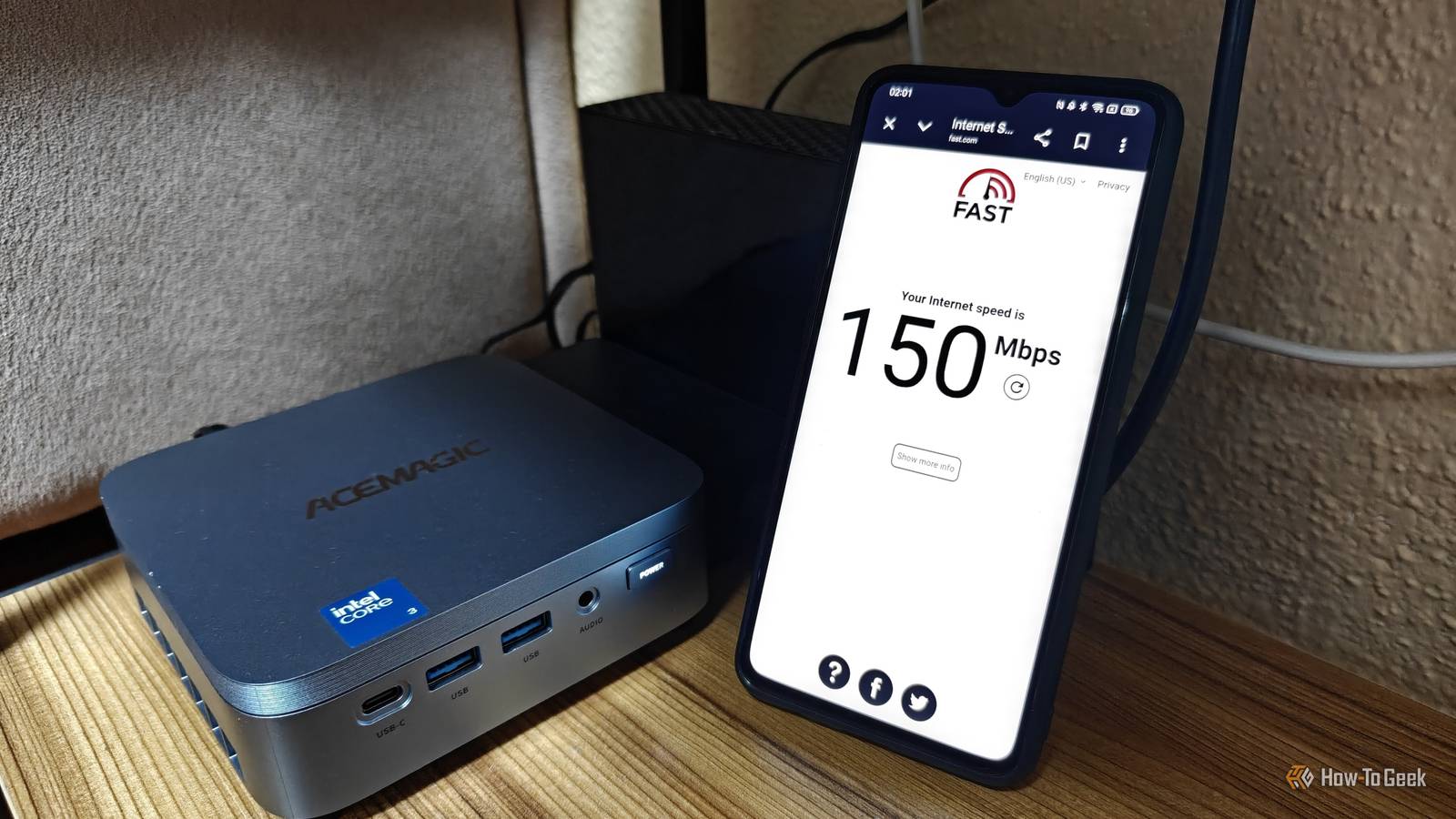
If file transfers between your PC and NAS feel painfully slow, your first instinct might be to run a speed test to check your internet connection. But even if the test results show much faster speeds than you’re getting in practice, your internet connection isn’t actually to blame for those painfully slow local transfers.
The real bottleneck has nothing to do with your internet speed — it’s probably somewhere inside your NAS or your local network.
A fast internet connection won’t make your NAS transfer files faster
Your NAS doesn’t care how fast your ISP can deliver data
Before we go over everything that affects file transfer speeds between your NAS and other devices, the first thing we have to talk about is the difference between your internet speed and your LAN (Local Area Network) speed.
Your internet speed is largely determined by the plan you sign up for with your ISP, which sets the advertised maximum download and upload speeds. For example, a gigabit plan offers download speeds of up to 1,000Mbps, though real-world speeds are often a little lower due to protocol overhead and other factors.
If you run an online speed test to check your speeds, you’ll get a reasonably accurate representation of how quickly your device can exchange data with a server.
Your local network speed, however, is its own separate thing. Think of it as your own personal in-house mini-internet that connects the devices in your home through your router. It has nothing to do with your internet speed; instead, its transfer rate depends on the hardware and connections that connect your devices.
A wired local network can often transfer data faster than your internet connection, but there are some real scenarios where an internet download can appear significantly faster than a local transfer.
For instance, if you try downloading a large game from Steam to your PC on a gigabit plan, you might see download speeds of around 110MB/s (~900Mbps). But if you try moving a bunch of small MP3 files or photos between your PC and NAS, the transfer rate could top out at just 15MB/s (~120Mbps).
This is because transferring lots of small files involves more overhead than transferring one large file. Your NAS has to create each file, allocate storage space, write its contents, and update the metadata. There’s also a lot more back-and-forth communication between your PC and NAS, and all these individual operations add up, resulting in slower transfers.
If you want an accurate real-world test of how fast file transfers between your NAS and other devices (ideally a PC with a wired connection), try copying a single large RAR file between your PC and NAS. The archive will be treated as a single large file, and if it’s large enough, you’ll be able to see the sustained transfer rate after the initial burst settles down.
Your local network could be capping transfer speeds before they even reach the NAS
Your slowest network connection sets the speed limit for everything else

Several factors determine how fast files transfer between your NAS and other devices, and one of the most influential is how you connect your devices. Wi-Fi is a convenient way to transfer files, and while the 5GHz Wi-Fi band can theoretically achieve multi-gigabit speeds with compatible Wi-Fi 6, 6E, and 7 devices, many factors can affect wireless performance.
A wired connection is usually more consistent. Most routers, NAS devices, PCs, and other networking hardware you might have in your chain support at least 1GbE, though you should check the specifications of each device.
If you’ve got a newer PC, NAS, and router or switch, you might be able to achieve 2.5GbE. On paper, 2.5GbE is 2.5 times faster than Gigabit Ethernet, so if you want faster transfer speeds, this is one of the first things to rule out.
It’s become common enough that a lot of mainstream consumer hardware supports it, so check the specifications of every device in your chain to find the maximum possible wired connection speed, including the cable. Even older Cat5e cables support 2.5GbE over distances of up to 328 feet (100 m).
Your hard drives might be the real reason why transfers feel so slow, but there’s a simple fix
Mechanical drives have their limits

Unless you’ve got an all-SSD NAS, you probably have at least one spinning mechanical hard drive in it. Compared to SSDs, hard drives are a lot cheaper and fairly reliable, which is why most of us use them instead.
However, hard drives are also considerably slower. Most hard drives can achieve real-world sustained transfer speeds of around 80MB/s to 200MB/s when transferring large files, with some high-end drives being able to achieve even more.
Cheaper, lower-end consumer hard drives tend to be closer to the bottom end (e.g., my external Seagate drive settles at around 118MB/s in sustained write tests), while some NAS-focused hard drives are closer to the higher end of the spectrum. For example, this 12TB WD Red Plus model has a rated transfer rate of up to 196MB/s.
If you only have a Gigabit Ethernet connection between your NAS and PC, you might hit the network’s speed limit before reaching your hard drive’s maximum transfer speed. Adding a cheap unmanaged 2.5GbE switch and connecting both your PC and NAS to it could let you get closer to your hard drive’s full speed, assuming both devices support 2.5GbE.
Upgrading to an SSD can significantly speed up local file transfers
The correct upgrade depends on what’s slowing your transfers down

We live in a world of ultra-fast NVMe SSDs that can reach blazing-fast sequential read speeds of 28,000MB/s, so when you compare them to hard drives, the latter can appear slow. Admittedly, if you need to transfer large files between your NAS and PC very quickly, they kind of are.
A hard drive can be especially annoying to deal with on a day-to-day basis if you allow it to spin down or need to access lots of small files directly on the NAS.
For instance, if you open a gallery of images, they can take several seconds to load as you scroll, especially if the drive has spun down or needs to retrieve lots of individual files.
For these kinds of tasks, an SSD can offer a meaningful upgrade. SSDs can transfer large files faster and access lots of small files much more quickly because they use flash memory to store data and don’t have the physical limitations of a spinning platter.
And since they don’t suffer from the same mechanical delays as hard drives, they’re also much better at handling multiple simultaneous requests.
The only catch is that an SSD could shift the bottleneck back to your LAN. Even inexpensive SATA SSDs can achieve sequential transfer speeds of around 500MB/s, which is equivalent to 4Gbps.
A 2.5GbE connection tops out at around 280–290MB/s in real-world transfers, so you’d need a 5GbE connection or faster to get close to a SATA SSD’s full sequential transfer speeds. Of course, your PC, NAS, and switch would all need to support that faster connection.
It can add up faster than you’d think

I’ve mentioned the term “overhead” a few times already as a potential culprit for less-than-ideal transfer speeds, but what does it actually mean?
Put simply, it describes all the extra work your PC and NAS have to do in addition to transferring the actual file contents. Transferring lots of small files instead of a single large archive can introduce a lot of overhead because your PC and NAS must handle each file individually.
Each file has to be opened separately, the NAS has to create a destination file, copy its contents over, and update the metadata. It adds up quickly, which is why bundling lots of small files into a single archive before transferring them can help.
In addition to that, the CPU in your NAS may be a bit underpowered compared to the one in your PC. If you run other tasks on your NAS while transferring files, such as self-hosted services, that can further slow things down.
Your NAS is only as fast as its slowest component
While internet speed tests can be a helpful tool for assessing your connection to the outside world, they won’t reveal much about why your NAS transfers feel sluggish. Your storage drives, NAS hardware, and network equipment all have a role to play, so try to identify the bottleneck and upgrade the relevant component to achieve faster transfer speeds.
