

I’ve owned various headphones and earbuds over the years with hi-res LDAC codec support. The only problem is that Windows 11 doesn’t support LDAC, which means I invariably connect to my phone, which does, but then it becomes a problem playing audio from my PC.
I know, I know, it’s not the worst problem, but it is frustrating.
There is a solution to this problem: The Alternative A2DP Driver. It’s a paid tool, but it brings much needed codec support to Windows 11, adding drivers that Microsoft, for some reason, believe we don’t really need.
My expensive earbuds sounded average until I changed one Android audio setting
It’s that one setting you need to tweak.
The Alternative A2DP Driver adds LDAC, aptX, and more
But it comes at a price

The problem arises because Sony’s LDAC is a licensed codec, and Microsoft has never built support for it into its operating systems; this was a problem on Windows 10, too. That means that if you own a set of cans or earbuds with LDAC support, you simply can’t use it.
Windows 11 supports SBC and AAC for Bluetooth audio. Most of the time, SBC and AAC are fine, with SBC delivering better quality than AAC. For most headphones, these do the job. The problem arises if you buy headphones that support hi-res audio using certain Bluetooth codecs, like Sony’s LDAC.
That’s where the Alternative A2DP Driver comes in. It’s costs $10 (or $13 with AAC support — more on this in a moment), but if you purchase the license during the 7-day trial period, it’s only $6 (or $9 with AAC). And if you own a set of hi-res cans, it’s actually a decent investment in your audio hardware, considering you’ve probably paid decent money to begin with.
Now, a tiny note on why you’re having to pay for AAC support in a separate app when it’s already licensed in Windows. That’s because similar to LDAC in that it’s a licensed codec; Microsoft just includes this in the Windows installation.
Also note that, while the Alternative A2DP Driver comes at a cost, the only real alternative, an LDAC-enabled Bluetooth adapter. These adapters get the job done, but at a significant cost. For example, the highly-rated FiiO BTA30Pro via USB, optical, or coaxial, acting more like a general audio receiver — but will set you back $145.
Install Alternative A2DP Driver, start customizing your audio settings
Easy installation and configuration
While fiddling with codec settings sounds like it could be overwhelming, the Alternative A2DP Driver makes it all incredibly simple. Not quite as simple as changing codecs and settings on Android, which is wonderfully easy, but it’s a massive step forward to what’s available on Windows usually. Which is nothing.
Installation is simple. You are adding drivers to Windows, but it’s a regular click to install process. Once installed, you’ll see a full list of the headphones previously connected to your device. So, on my main Windows PC, I see an enormous list from years of headphone and earbud reviewing, while on my Windows laptop, I have a much smaller list of hardware I travel with.
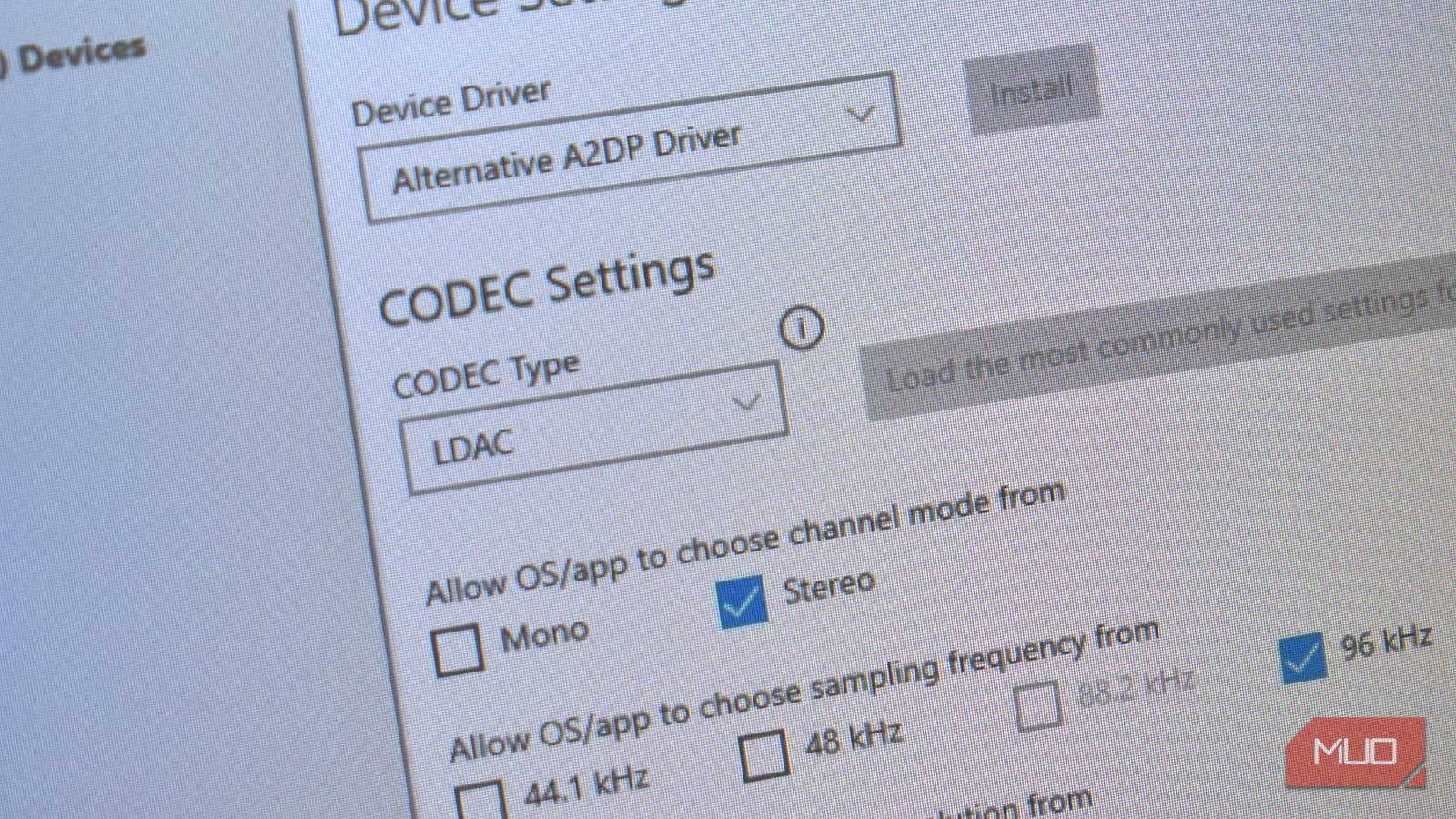
The first things to do is select the headphones you want to enable LDAC support for. Then, under Device Settings, select Alternative A2DP Driver followed by Install.
You’ll bump into the Driver Installation warning here, which you can click through. Depending on you Windows security settings, you may also encounter a “non Microsoft-verified” warning, which you can also click through and accept.
Configure your heapdhones LDAC codec settings

From here, you can begin to customize your Bluetooth codec settings. Alternatively, just press the Load the most commonly used settings for the CODEC button, and it’ll configure your audio settings automatically.
- Select the CODEC Type dropdown and select LDAC. The Alternative A2DP Driver will present a host of new options for your paired headphones.
- The default options are set to Stereo channels, 96kHz sampling, and 24-bit audio to give the best audio output. Tweak these options as you see fit for you audio output.
- You can also adjust the Encode quality for LDAC headphones, switching between the codec’s 330kbps, 660kbps, and 990kbps. I do find it better to leave the Automatically reduce the encoding quality when the radio quality is poor option checked to give a fallback option.
Then, at the bottom of the screen, you’ll see you Current Status. It shows your current settings at a glance, including your Bitrate. This is particularly handy if your audio becomes patchy, as the bitrate counter will change, indicating that this is likely the source of the issue (and you should reduce the overall quality in the settings). This is alo why keeping the automatic encoding option checked is useful.

- OS
-
Windows
- Supported Content
-
LDAC, aptX, aptX HD, aptX Adaptive
- What’s included?
-
High-Res Codecs
- Developer(s)
-
Luculent Systems
- Free trial
-
7-days
The Alternative A2DP Driver is a custom Windows audio driver that unlocks premium Bluetooth codecs like LDAC and aptX HD. It bypasses standard Windows restrictions, allowing users to experience high-resolution, low-latency wireless audio. The driver optimizes audio bitrates and gives full control over connection stability for superior headphone performance.
It costs, but it’s worth it
Where possible, I always want free software to fill these voids. But in this case, there isn’t apparently, and the Alternative AD2P Driver does the job, with plenty of additional options.
Given what you’ve likely paid for a set of hi-res headphones or earbuds, another few dollars isn’t all that much, and means you can use your headphones as you should: without audio restrictions. Now, the very fact it is restricted in the first place is downright irritating, but that’s another story.
Don’t forget that Alternative AD2P Driver isn’t just about LDAC support. It also brings Qualcomm’s aptX codec to Windows, too. aptX has the same problem as LDAC; it’s fully licensed and Microsoft doesn’t include it in Windows. So, again, if you have high quality headphones or earbuds that use aptX, aptX HD, or aptX Low Latency, this is the Windows 11 Bluetooth audio fix you’ve been looking for.
I didn’t realize my HDMI cable was blocking Dolby Atmos — the upgrade was free
Use the wrong cable or port, and you’ll miss out on Dolby Atmos.
