

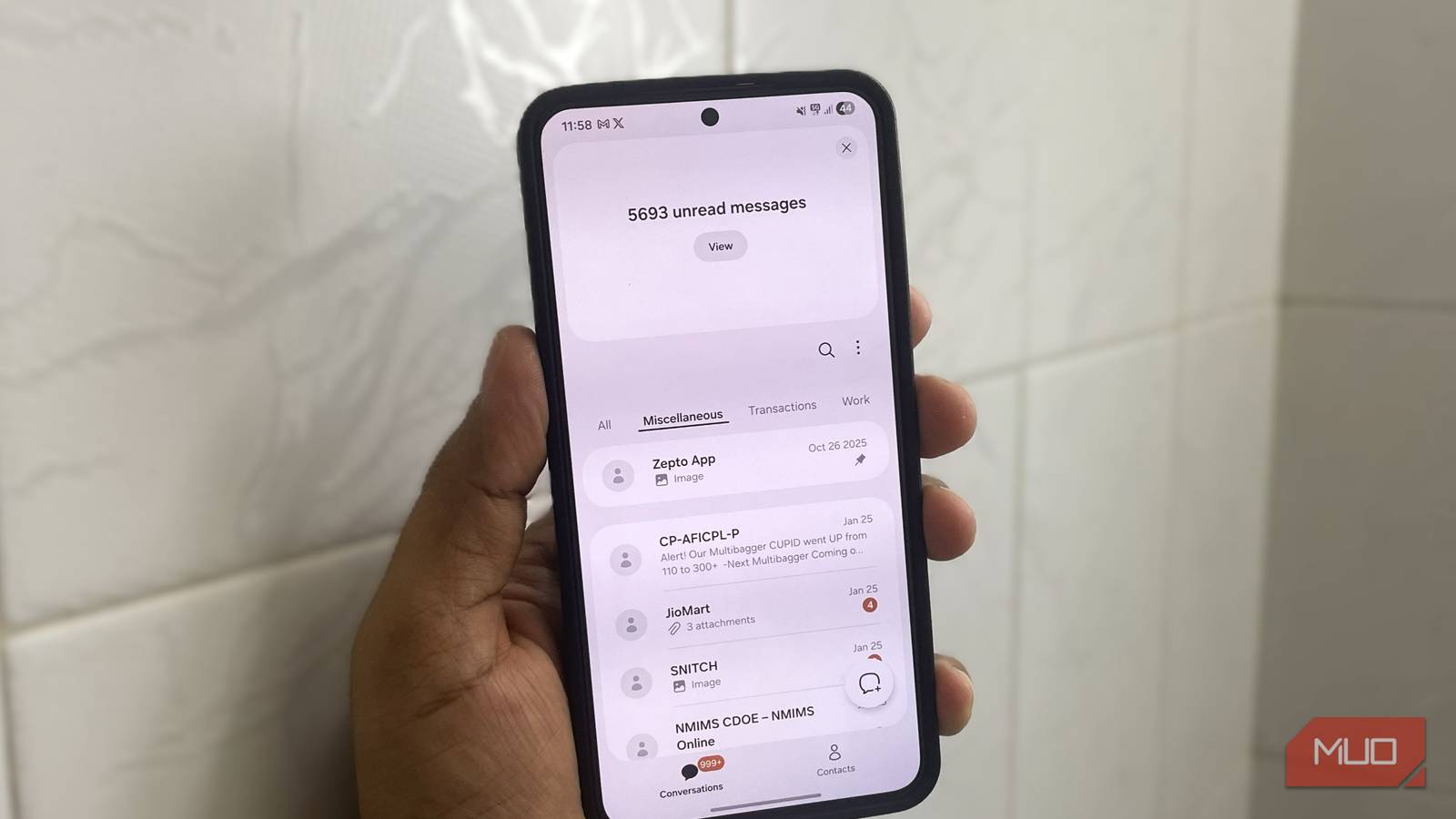
Samsung Messages seems like any other texting app at first. Simple and even a little boring. But the app has a whole lot of features that can make reading, replying, and managing your text messages way more convenient. And no, I’m not talking about simply bookmarking messages or digging things out of the Trash folder.
There’s so much more than that. From a simple pinch gesture that lets you modify the text size to quick responses that save time, and conversation categories that bring order to inbox chaos. Once you start using these features, Samsung Messages feels anything but boring.
Pinch to adjust the font size
Customize your chats for comfort


Like most phones, Samsung Galaxy devices let you change the system-wide font size, which makes the text appear bigger or smaller. That works fine, but you don’t have to alter the font size just to make text inside Samsung Messages easier on the eyes.
Open any conversation and simply pinch in or out on the screen. It works much like zooming in on a photo. Once you set a zoom level, it’s applied to all your chats. My only complaint, though, is that this works only inside a chat and not on the main inbox.
Remove location from shared images
Protect your privacy


Every photo you capture on your Samsung phone carries more details than what you just see on the screen. This extra data is known as metadata, and it includes the exact GPS location of where the photo was captured. Of course, this is not a problem when you’re sharing photos to your friends and family. But this GPS data is also unnecessary and can pose a privacy risk.
While it’s possible to remove this metadata from photos manually before sharing, Samsung Messages makes it much easier. In Samsung Messages, head to Settings > More settings and turn on Remove location from shared images. Once that’s on, any photo you send through the app automatically leaves out location details.
Stop checking every notification blindly


Not every message you receive is going to be important. A text from family or your partner usually matters far more than that random promotional message from a local store. But when your phone plays the same notification sound for every text, there’s no way to tell who it’s from without actually picking up the phone.
A clever way to fix this is by customizing notification sounds for your favorite contacts. That way, you can tell if a message is worth stopping to check. Hear that specific tone and you know it’s someone important. Hear the default sound, and it can probably wait. This even works when you’re wearing headphones.
I find this extremely underrated because it stops me from picking up my phone unnecessarily while working. For that same reason, I’ve also set up different notification sounds for different apps, so my phone gives me context before I even look at the screen.

Your group chats might be terrible without you even realizing it
An easy-to-miss upgrade can silently downgrade your chats.
Use conversation categories and auto-delete older messages
Manage inbox chaos
Besides personal chats, your inbox is probably flooded with one-time codes, delivery updates, promotional texts, and more. The real problem with this overload is not the messages themselves, but how hard it becomes to find the conversations that actually matter. Sure, you can always pin your favorite chats, but that only helps so much.
Samsung Messages solves this with a handy feature called conversations categories. It lets you create tabs for different types of messages. This means you can keep your personal messages in one place, work conversations in another, and shove all those bank alerts and promos into their own category.
Setting it up is simple. Tap the three-dot icon and choose Edit categories, then move your chats where they belong. Once you do this, you’ll see your messages in relevant folders instead of one endless list.
To keep things tidy, there’s also auto-delete for older messages. You can enable it by heading to Settings > More settings > Auto-delete older messages. Once you do, Samsung Messages automatically deletes older texts once your inbox reaches 1000 texts.
Use quick responses to save time
Speed up your chats


You may already be using quick responses on your phone when you can’t pick up a call, but the same idea works for text messages too. What’s even better is that you aren’t limited to those default “What’s up?” or “When can we meet?” responses.
You can add your own responses based on what you actually say every day. For example, I use quick responses for phrases like “On my way” and “Are you free right now?”
To set this up, head to Settings > More settings > Quick responses. Here, tap the plus icon at the top and start adding your custom phrases. Finally, turn on the Show in conversation option. Once done, your saved responses appear right inside your chats.
None of these features are strictly necessary, but these small conveniences do start to add up. In fact, some of these features are the reason I prefer Samsung Messages over Google Messages.
