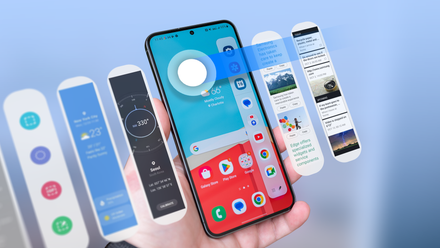

Samsung Galaxy phones, like all other Android phones, come with a regular one-handed mode. It works, but it only goes so far. While it can help you use your phone with one hand, it’s fairly limited and doesn’t offer any extra features.
But Samsung also offers an advanced one-handed mode for its phones, although you have to go out of your way to access it. It’s called One Hand Operation+, and it can be a proper game-changer for how you use your Galaxy phone, as long as you stick with it and go through the learning process, which can be a bit steep.
The default one-handed mode on Galaxy phones is serviceable
It’s just as basic as they come
Your Galaxy phone comes with a regular one-handed mode you can access by opening Settings, going to Advanced features, and then selecting One-handed mode. You can launch it by swiping down in the center of the bottom of the screen or by double-tapping the Home button if you’re using navigation buttons.
All it does is shrink the entire screen down, allowing you to navigate your phone with one hand. You can position the screen left or right, move it up or down, and resize it to fit your preferences and the length of your fingers. I used it occasionally back when the Galaxy S21 FE was my main phone, but I didn’t find it super helpful because the screen was tiny, and the keyboard was so cramped that typing anything aside from a few short words was an exercise in frustration.
While helpful in a pinch, the default one-handed mode leaves plenty of room for improvement. The good news is that Galaxy phone owners have access to another one-handed mode that’s supercharged with features and allows you to control your phone with one hand while keeping the screen size intact.
One Hand Operation+ is an advanced one-handed mode every Galaxy phone owner should check out
It’s extremely powerful, but it comes with a steep learning curve
One Hand Operation+ isn’t available on Samsung Galaxy phones by default. In other words, you won’t find it in Settings. Instead, it’s part of Samsung’s Good Lock customization suite, but it’s also available as a standalone app you can download from the Play Store. Once you install it (or download it via Good Lock), you’re greeted with a plain-looking settings screen that masks its extremely useful but quite complex functionality.
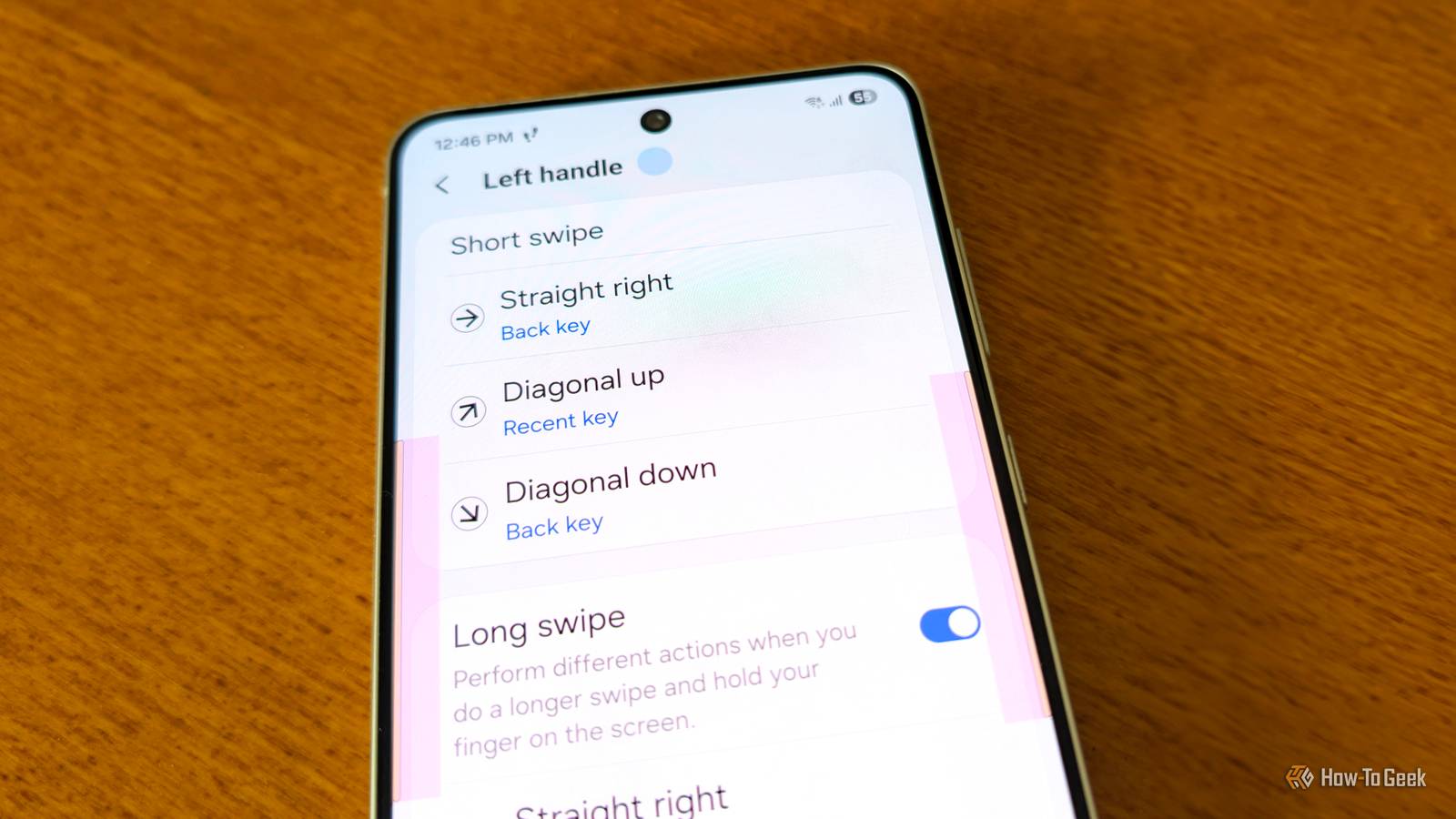
The premise is simple enough: you have two handles placed on opposite sides of the screen, each supporting up to six gestures in total. You’ve got an assortment of short swipes (straight, diagonal up, and diagonal down) along with the same set of long swipes, which are entirely optional. You can then assign any of the almost 50 available actions to each of the three swipes. Add long swipes and you can have up to six actions mapped to each handle, making up a dozen actions in total.
You can change the size of the two handles, as well as their position, and tweak the width of the touch area that responds to swipes. You can also enable visual cues that show the position of the handles anywhere in One UI, making them easier to use. There’s also the option to add another set of handles, which increases the maximum number of actions you can map to 24.
This may sound daunting, and it kind of is. If you plan to learn the ropes, I have to warn you that the learning curve is steep, and the adjustment period will likely include a ton of wrong swipes until you build up the necessary muscle memory. But once you get the hang of it, you’ll realize that One Hand Operation+ is an extremely powerful tool that allows you to perform almost any action on your phone with just one hand while keeping the screen size intact.
You can open apps, access Quick Settings and the notification panel, activate split-screen mode, grab screenshots, create custom shortcuts inside the app, and so much more. I recommend using color cues until your fingers know where the handles are and it becomes second nature. Then you can add another set of handles and double the number of potential shortcuts.
The sky’s the limit with One Hand Operation+, and it all boils down to how long you’re prepared to stick with it. If you persevere and build up muscle memory, you’ll never need to use your other hand to control your phone again. While Samsung made a bit of a mess with the menus (as is the case with most Good Lock modules), it also created a robust and powerful tool that can become so handy you’ll never want to move to another phone again.
Samsung yet again proves it’s the king of customization on Android
Stuff like One Hand Operation+ is the reason why I still keep my Galaxy S21 FE handy and use it as a secondary phone for an odd day or two. I love the amount of work Samsung has been putting into Good Lock and its modules, and the sheer level of freedom it gives you to tinker with your phone and customize every aspect of One UI to your heart’s content.
No other phone brand does it quite like Samsung, which is why there’s a good chance I’ll switch back from Pixel to Samsung sooner or later, even though I recently found a similar app you can use on Pixel phones. Good Lock is that good.